
Steps to Add a BRNKL Black Device
-
Log in to the BRNKL App.
-
If you don’t have a User ID, the app will guide you through creating one.
-
-
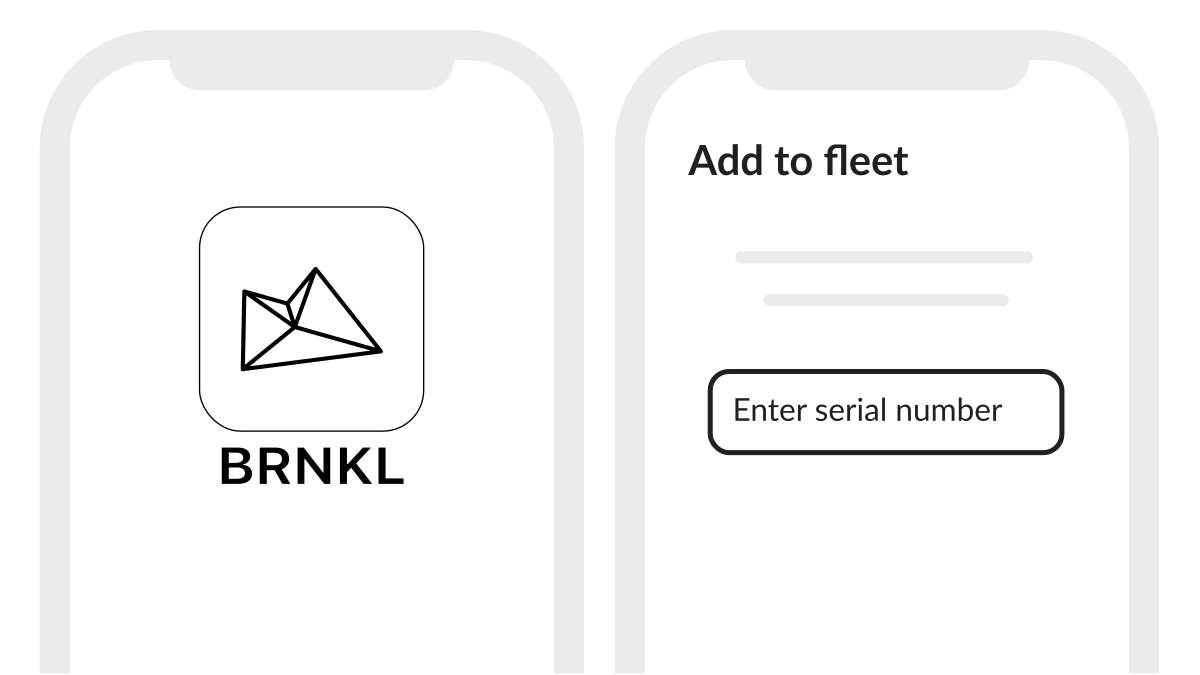
If no devices are associated with your account:
-
The app will open to the Add Device screen.
-
-
If you already have devices:
-
The app will open to the Fleet View or the Map Page of the last accessed device.
-
-
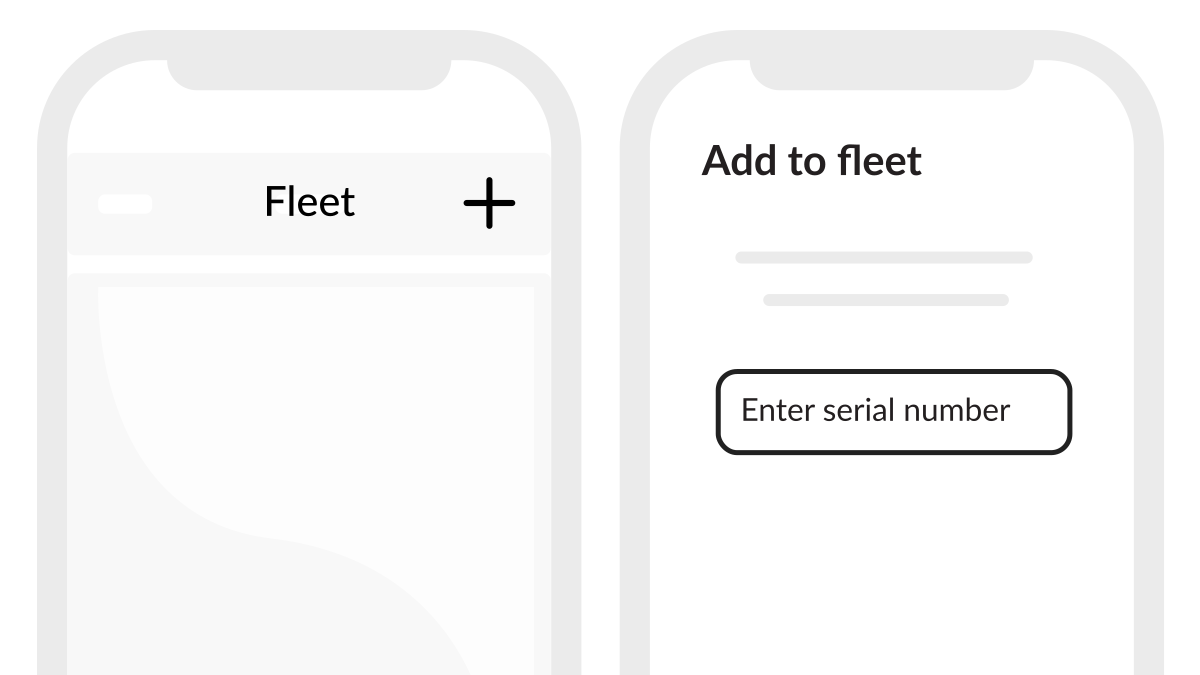
To add a new device:
-
Click the + button in Fleet View. Enter the serial number of the BRNKL Black.
-
-
Ownership Assignment:
-
If you are the first user to add the device, you will be set as the Owner.
-
If the device already has an owner, that person must invite you to add it to your app.
-
Fleet View
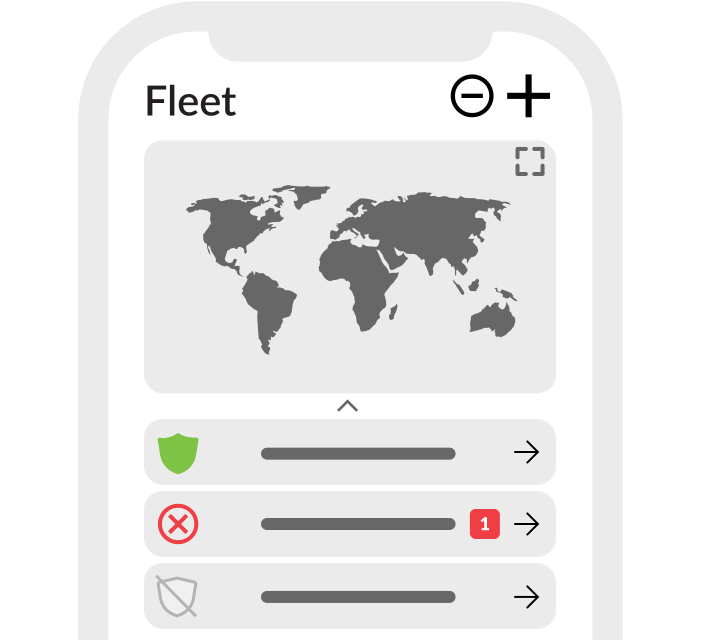
Fleet View provides an overview of all BRNKL Black devices linked to a user’s app account.
Features
-
Map Display – Shows the locations of all associated BRNKL Black devices.
-
Device List – Displays the status of each device:
-

-

-

-
-

Navigating Fleet View
-
Click on a device in the list to open its Map Page for more detailed monitoring and controls.