
On DFO vessels, the BRNKL Black system includes a Peplink cellular router, but does not include an active cellular data plan.
The Peplink router acts as a local WiFi access point, allowing users to connect to the network and access the Device Manager locally.
Accessing the BRNKL Black Device Manager
-
Connect to the Peplink Wireless Access Point:
-
On your device (laptop, tablet, or smartphone), go to your WiFi settings.
-
Look for the network named PEPLINK_xxxx and connect to it.
-
-
Navigate to the BRNKL Black Local IP Address:
-
Open a web browser (e.g., Chrome, Firefox, Safari).
-
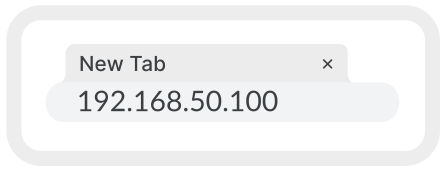
In the address bar, type 192.168.50.100 and press Enter.
-
-
Log In to the Device Manager:
-
You will be prompted to enter a username and password.
-
Use the Manager ID credentials provided on the sticker attached to your BRNKL Black device.
-
Click Login to access the device manager interface.
-
Accessing the Peplink Router Web Interface
-
Connect to the Peplink Wireless Access Point:
-
Follow the steps above to connect to the Peplink AP.
-
-
Navigate to the Peplink Local IP Address:
-
Open a web browser.
-
Enter 192.168.50.1 in the address bar and press Enter.
-
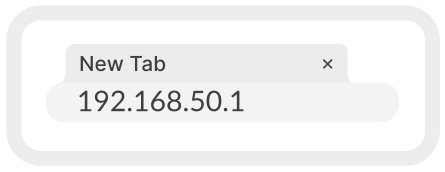
Note: Your browser may present a warning that this site is not secure. Depending on your browser, press advanced or more details and then proceed.
.svg?cb=3515d18847c26241b4b3c1aa37bd5e2c)
Connecting the Peplink Router to an Internet Source
External WiFi Hotspot
-
Access the Peplink web interface:
-
Follow the steps above to connect to the Peplink web interface.
-
-
Adjust Connection Priorities:
-
Once in the Peplink dashboard, locate the WAN Connection Status section.
-
Drag WiFi WAN (either 5 GHz or 2.4 GHz) to Priority 1 to set it as the primary internet source.
-
.svg?cb=70b77d47aa322adf6734c21aa5529898)
-
Select and Connect to a Wi-Fi Network:
-
Click the button on the right side of the WiFi WAN row.

-
.svg?cb=ad626b2f74d2ef4d542c9b7eb40bc28a)
-
A list of available WiFi networks will appear.
-
Select the desired WiFi network you wish to connect to.
.svg?cb=2522b7415eef41b70532e2ed84f71f5e)
-
Enter the network's password when prompted and confirm the connection.
Note: Changing the Peplink WiFi settings will temporarily disconnect all devices from its access point. You may need to reconnect your device to PEPLINK_xxxx after the configuration.
Using a SIM Card for Constant Connectivity
-
The Peplink router supports cellular connectivity through a SIM card.
-
Insert a provisioned SIM card into the Peplink router to enable constant internet access when within cellular coverage areas.