System Interfaces
-
Device Manager (Local & Remote): Provides a complete interface for managing connected devices, configuring system settings, and reviewing collected data. Available both onboard and remotely via internet access (optional).
-
BRNKL App (Remote Only, Optional): Allows users to monitor vessel status, view live or recorded video feeds, and receive alerts from anywhere.
Access Device Manager
There are two ways to access the Device Manager:
-
On board via the local network.
-
Remotely via a secure tunnel, if the device is connected to the internet.
Local Device Manager Access
Using your browser device, on the BRNKL-connected local network:
In the browser address bar, enter 192.168.50.100.
BRNKL Black devices have a default static IP address set to 192.168.50.100. This can be changed in the Device Manager settings page.
Remote Device Manager Access
Remote access to the Device Manger is via a secure tunnel with a unique URL with a brnkl.co extension. This URL can be found on a sicker that is included with your BRNKL. It can also be found in the mobile app, even if app access is disabled in the Device Manager.
On your mobile device, open BRNKL.
From Settings select BRNKL Device Manager. A new tab will open to https://xxxxxxxxxxx.brnkl.co
Device Manager Login
The first time a user accesses the Device Manager, they will be prompted to create a Manager ID.
About Manager IDs:
-
They apply only the specific BRNKL Device.
-
Additional Manager IDs can be created on the Device Manager settings page.
-
They are distinct from BRNKL App User IDs, which are linked to an email address.
From Create Manager ID, follow the prompts to create a Device Manager account and set basic device settings.
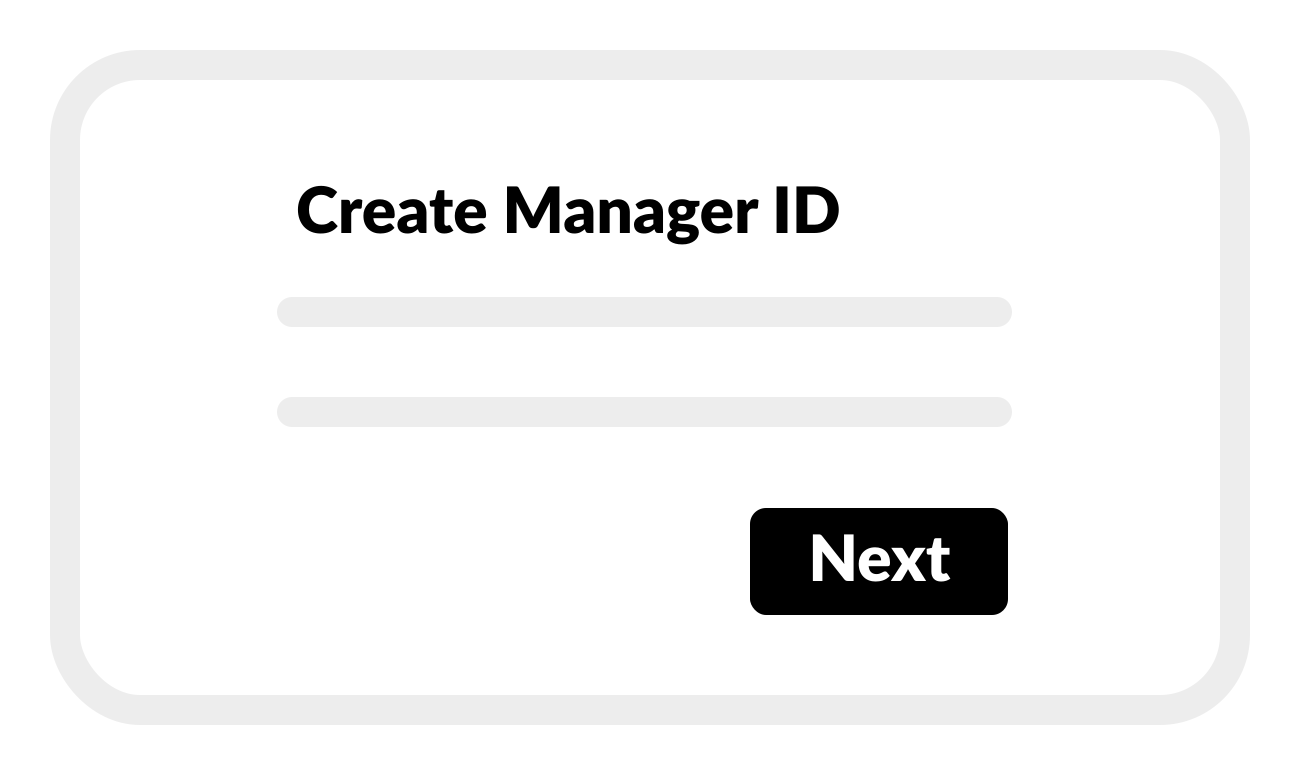
Subsequent Device Manager logins will require the user to enter a Manager ID.
Connect the BRNKL mobile app to your BRNKL Black.
What you need:
-
BRNKL Black, installed and connected to internet
-
Remote Access enabled in the Device Manager settings page
-
Mobile device, connected to internet
-
BRNKL Serial Number
The BRNKL Black can be added to the mobile app even if Remote Access is disabled, but no data will be transmitted to or from the device.
On the BRNKL or its packaging find the BRNKL Serial Number and make note of it.
-cropped.svg?cb=d3952ac4003c2c31af84d070a9a1a6ec)
If you have a BRNKL app account:
Connect your existing BRNKL app account to your BRNKL.
On your mobile device, open BRNKL.
From Map, on the status bar, select the name of the active BRNKL.
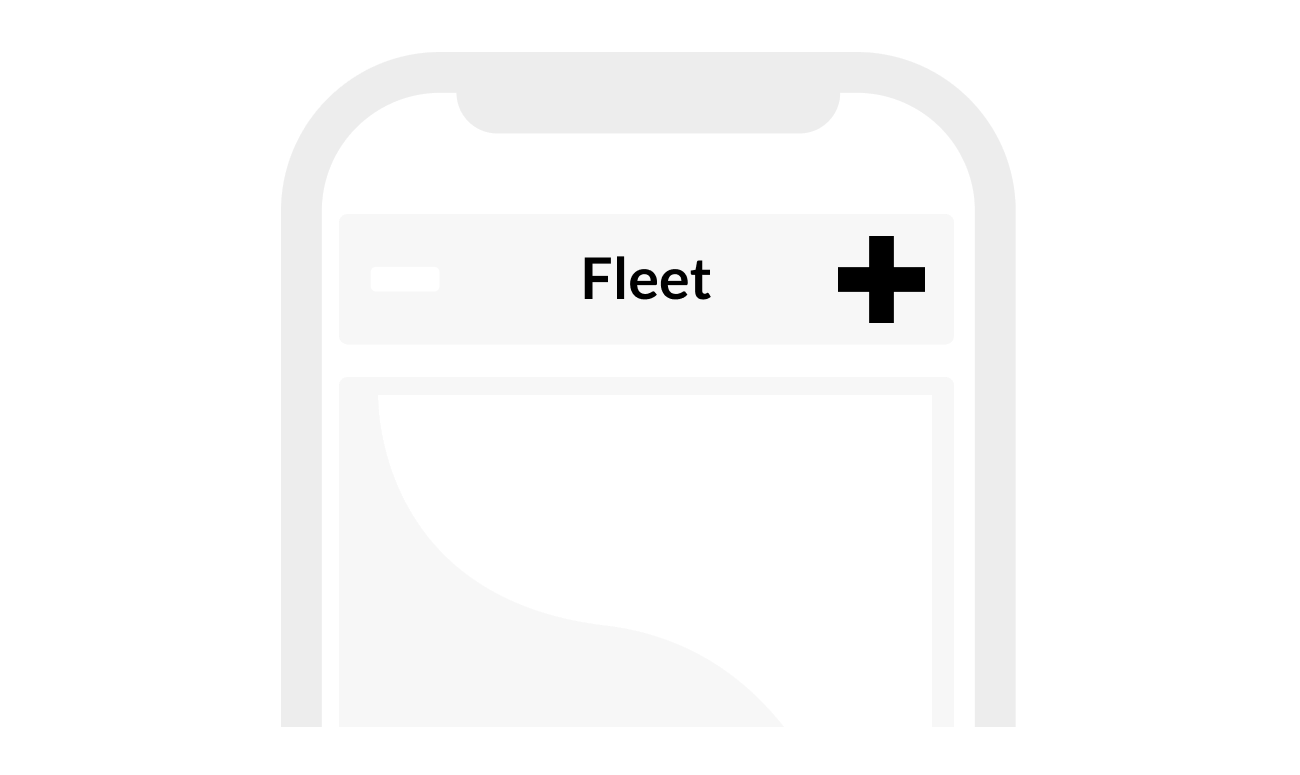
From Fleet, select +.
If you do not have a BRNKL app account:
Create and connect a new BRNKL app account to your BRNKL.
On your mobile device, download and install BRNKL.


Open BRNKL, select Create account.
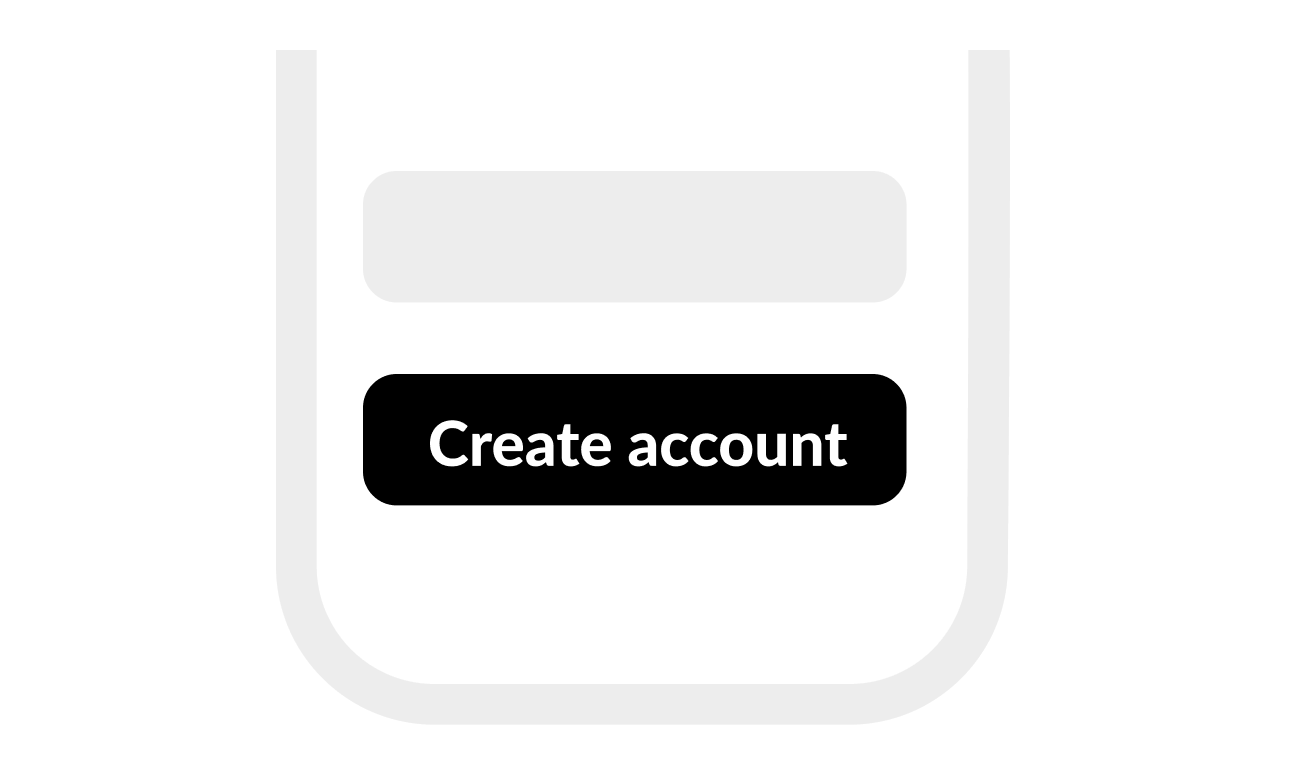
Follow the instructions.
Add Device to App
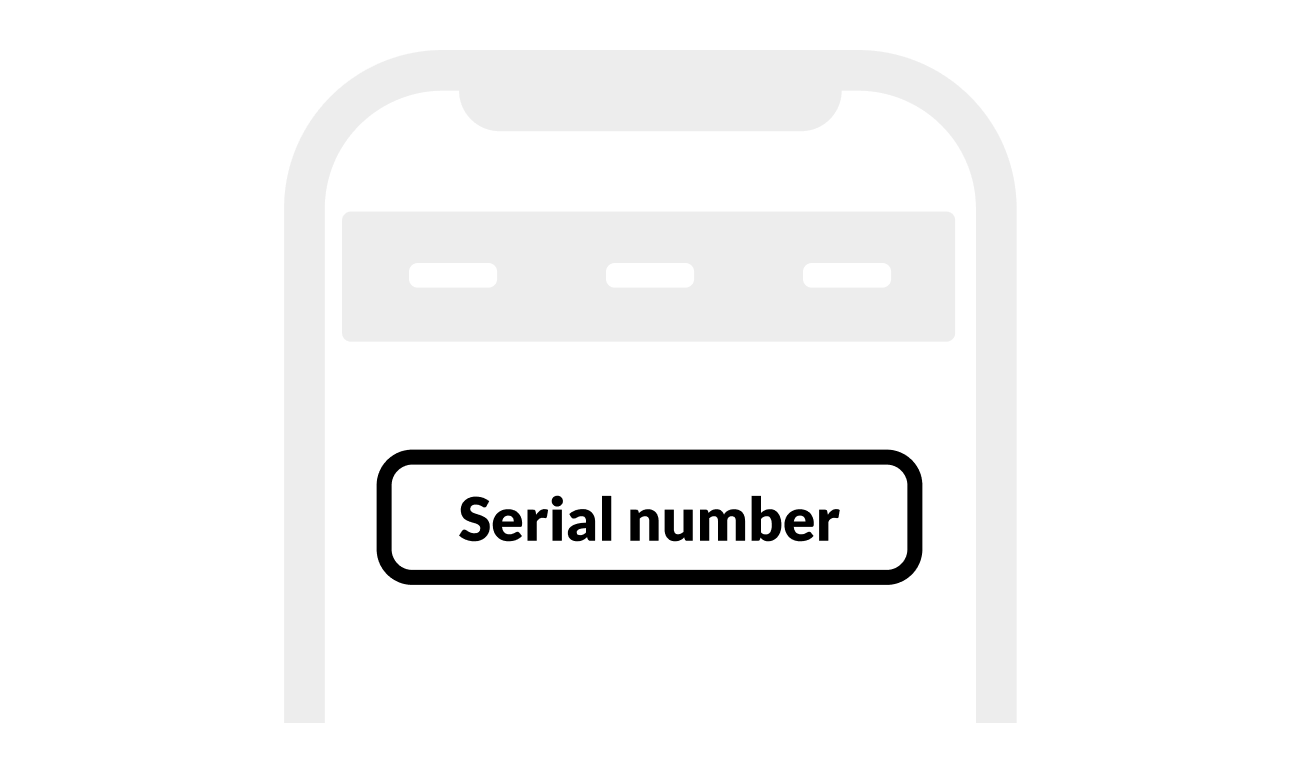
When prompted, enter the Serial number or scan the QR code on your BRNKL or packaging.
.svg?cb=5368319ea0881bb0aed2869efbb0934b)
Select Installer or Owner depending on your role
Installer accounts provide temporary access only.
Select Add BRNKL.
From Map, check the status bar.
The active BRNKL is connected to your BRNKL app account.