
Overview
BRNKL supports video feeds from most Axis IP cameras, but the following models are officially supported:
-
Axis M2035-LE
-
Axis M4317-PLVE
-
Axis M4318-PLVE
-
Axis P7304 Video Encoder
Install camera
-
Mount the camera according to the manufacturer’s instructions.
-
Connect the camera to the vessel’s IP network.
-
Ensure the camera is powered on during configuration.
Prepare Axis camera
Find camera IP address
-
Open BRNKL Device Manager → Settings > Cameras.
-
Click + Add Camera.
-
From Available Cameras, find the Axis camera and make note of its IP address.
Configure camera
-
On a device connected to the same network as the camera, open a browser and enter the camera’s IP address.
-
On the camera Welcome page:
-
If previously set up → log in using root or another account.
-
If prompted → create a password for the default root account and record it.
-
Create an ONVIF user
-
In the camera’s web interface, go to Settings > System > ONVIF.
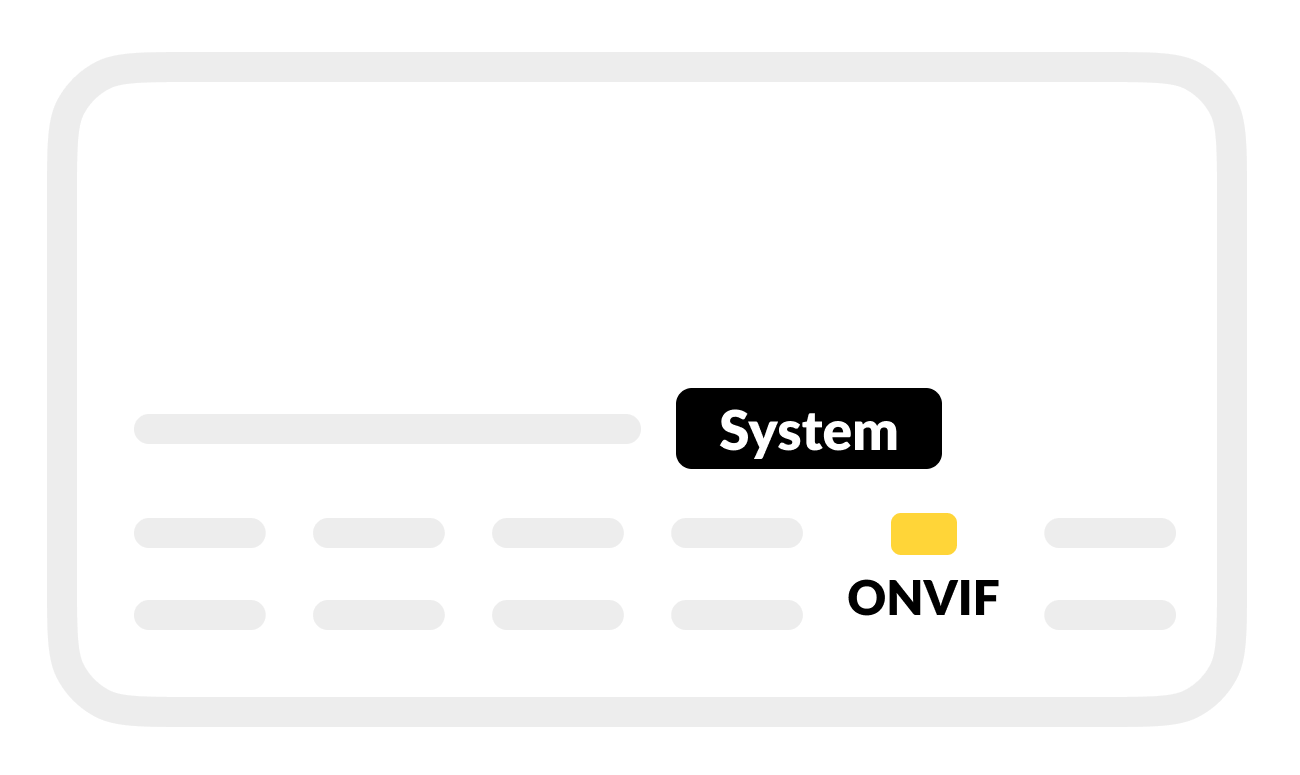
-
Under ONVIF users, click + to add a user.
-
Enter the following:
-
Username: root
-
Password: (same as the root login password)
-
User group: Administrator
-
If both the account and ONVIF users do not have the same username (root) and password, you will encounter issues when streaming or configuring the camera.
-
Save the settings.
Assign a static IP address
-
Go to the camera’s network settings.
-
Set the IP address to the same one currently assigned via DHCP.
-
Set Gateway Address to the IP of the MFD or Router that BRNKL is connected to.
-
Save and apply the settings.
Add camera to BRNKL Device Manager
-
Open BRNKL Device Manager → Settings > Cameras.
-
Click + Add Camera.
-
From Available Cameras, select the Axis camera.
-
Enter credentials:
-
Username: root
-
Password: (root account password)
-
-
Enter a descriptive name for the camera (e.g., Engine Room).
-
Click Add.
Add additional views
Some Axis devices support multiple camera views, such as the M4317-PLVE and M4318-PLVE. These cameras support up to 11 different camera views. These can be accessed by updating the RTSP URL to specify the desired profile.
RTSP Format
rtsp://<username>:<password>@<ip>/axis-media/media.amp?camera=<number>
Available Camera View Numbers
Update the camera=<number> parameter in the RTSP URL to select the desired stream.
Axis cameras
|
Camera View Number |
View Name |
|---|---|
|
0 |
Fisheye |
|
1 |
Panorama |
|
2 |
Double Panorama |
|
3 |
Quad View |
|
4 |
View Area 1 |
|
5 |
View Area 2 |
|
6 |
View Area 3 |
|
7 |
View Area 4 |
|
8 |
Corner Left |
|
9 |
Corner Right |
|
10 |
Double Corner |
|
11 |
Corridor |
Axis encoders
|
Camera View Number |
View Name |
|---|---|
|
1 |
Camera 1 |
|
2 |
Camera 2 |
|
3 |
Camera 3 |
|
4 |
Camera 4 |