
Overview
BRNKL supports video feeds from Garmin GC200 Marine Cameras. Feeds can be added from Garmin GC 14 by using a supported video encoder such as the Axis P7304.
The following Garmin camera models are not yet supported by BRNKL:
-
Garmin GC 245
-
Garmin GC 255
Install GC200 camera
-
Mount the camera according to the manufacturer’s instructions.
-
Connect the camera to the vessel’s Garmin network.
-
If the camera is connected through a Garmin GMS 10 network switch and you want the camera to be available 24/7:
-
Follow the Garmin GMS 10 instructions to configure the switch for always-on operation.
-
Ensure the switch is powered by a source that provides 24/7 power.
-
Prepare GC200 camera
Find camera IP address
If BRNKL is connected via USB Ethernet adapter:
-
Open BRNKL Device Manager → Settings > Cameras.
-
Click + Add Camera.
-
From Available Cameras, find the GC200 camera and make note of its IP address.
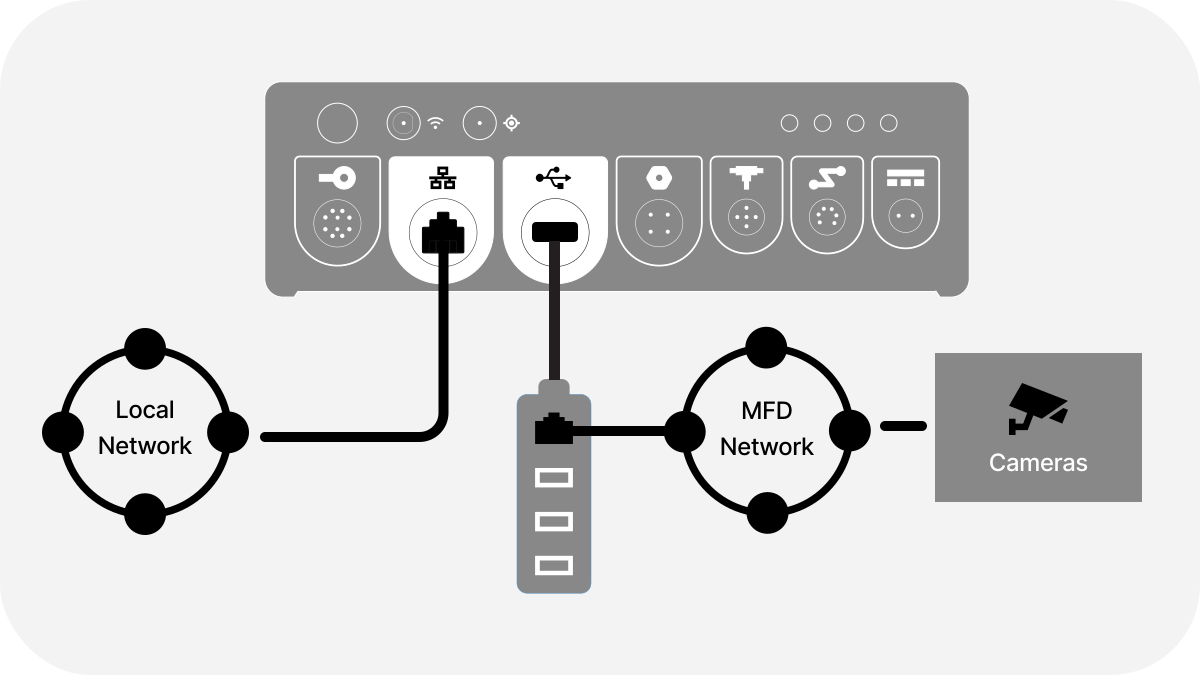
If BRNKL is connected via VLAN in a router:
-
Find the IP address through the router’s admin interface, or
-
Connect a laptop/smartphone directly to the Garmin network and run an IP scanning tool (e.g., LAN Scanner).
Configure camera
-
Open a web browser and navigate to the camera’s IP address.
-
On the camera Welcome page:
-
If previously set up → log in using account credentials.
-
Otherwise use default login credentials
-
Default GC200 login:
-
ID: admin
-
Password: 1234
Configure stream settings
-
In the camera’s web interface, go to Setup > Camera > Stream Format.
-
Under 1st Stream Setting, configure:
-
Frame Rate: 20 fps
-
Bitrate: 2400000 bps
-
-
Click Save.
Assign a static IP address
-
In the camera’s web interface, go to Network > Network Setting.
-
Set IP Type to Static.
-
Configure as follows:
-
If connected directly to the Garmin network → keep the DHCP-assigned settings.
-
If connected via VLAN use the following settings:
-
IP Address:
172.16.6.__-
Assign a unique number (__) between 50–90.
-
Record the full IP address for later use.
-
-
Subnet Mask:
255.255.0.0 -
Default Gateway:
172.16.6.200or your VLAN gateway address.
-
-
-
Click Save.
Add camera to BRNKL Device Manager
-
Open BRNKL Device Manager → Settings > Cameras.
-
Click + Add Camera.
-
If BRNKL is connected to the Garmin network using the USB Ethernet adapter, the camera will be auto-discovered.
-
If the camera is not auto-discovered, click + Enter camera IP address and enter the camera’s IP address.
-
-
Enter credentials:
-
Username: root
-
Password: (leave blank)
-
-
Enter a descriptive name for the camera (e.g., Engine Room, Cockpit).
-
Click Add.