
Check, review, and find out about shore power activity by adding a shore power connection to your BRNKL using a BRNKL Shore Power Sensor.
What you need:
-
BRNKL Shore Power Sensor
Reference:
Install shore power sensor
Disconnect all AC power sources before accessing electrical panels, switches, or devices.
To install shore power sensor, follow these steps:
A | Select position
Follow these guidelines:
-
Place indoors close to the AC electrical panel.

-
Provide access to non‑inverted side of the AC electrical panel.
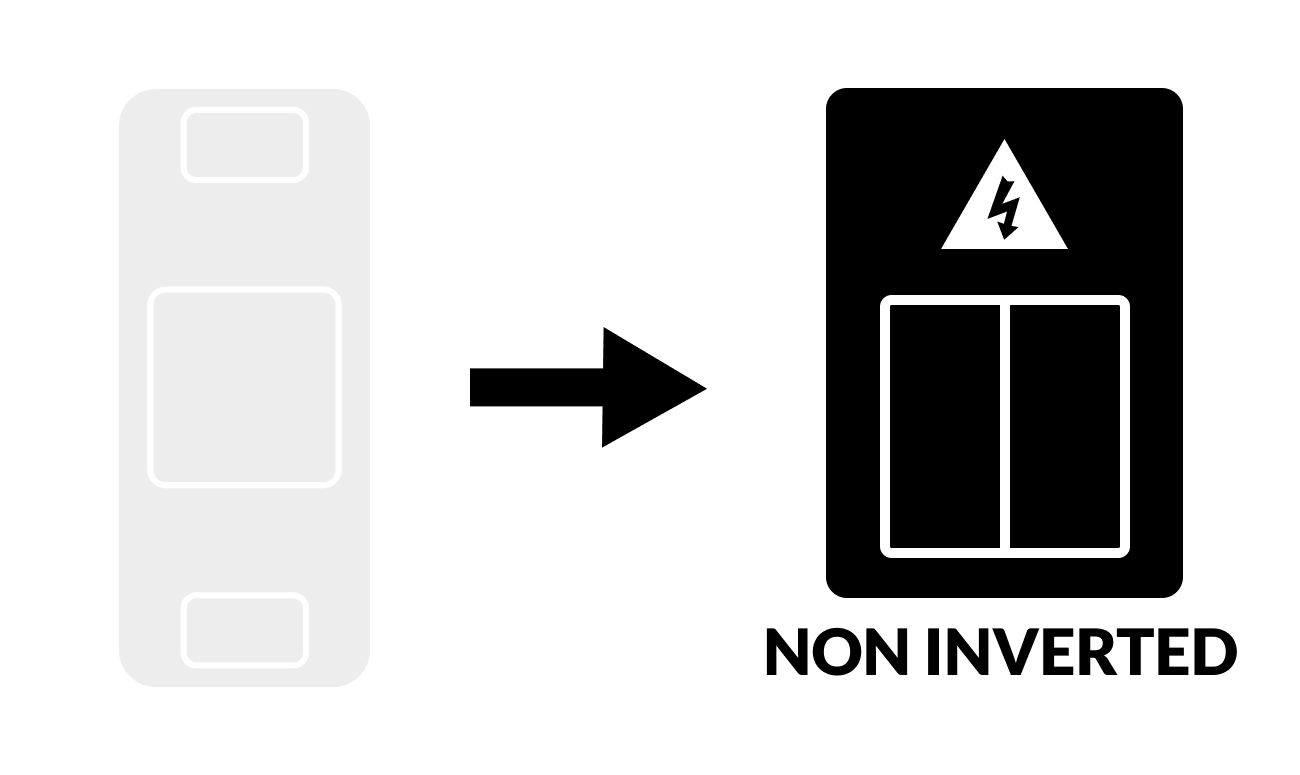
-
Ensure a stable mounting surface.
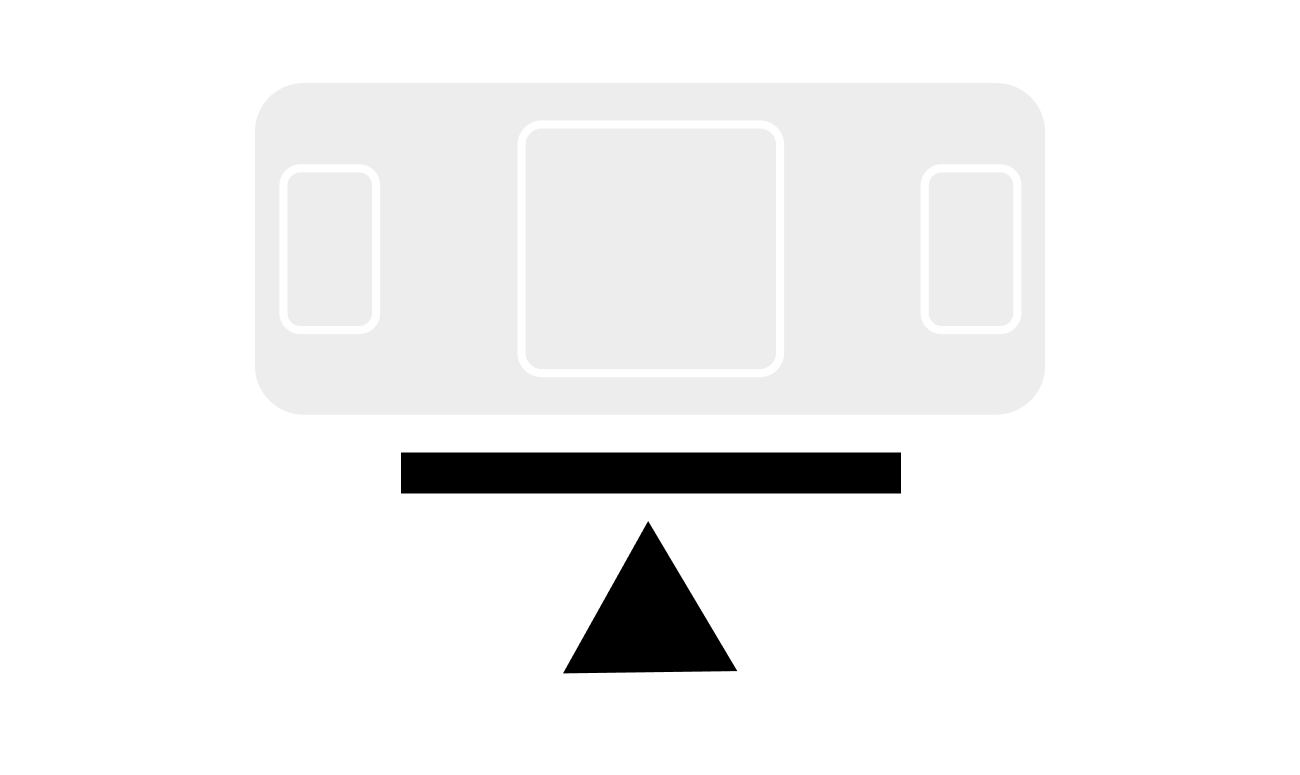
B | Mount device
In the selected position:
Mount and secure the sensor using two #4 screws.
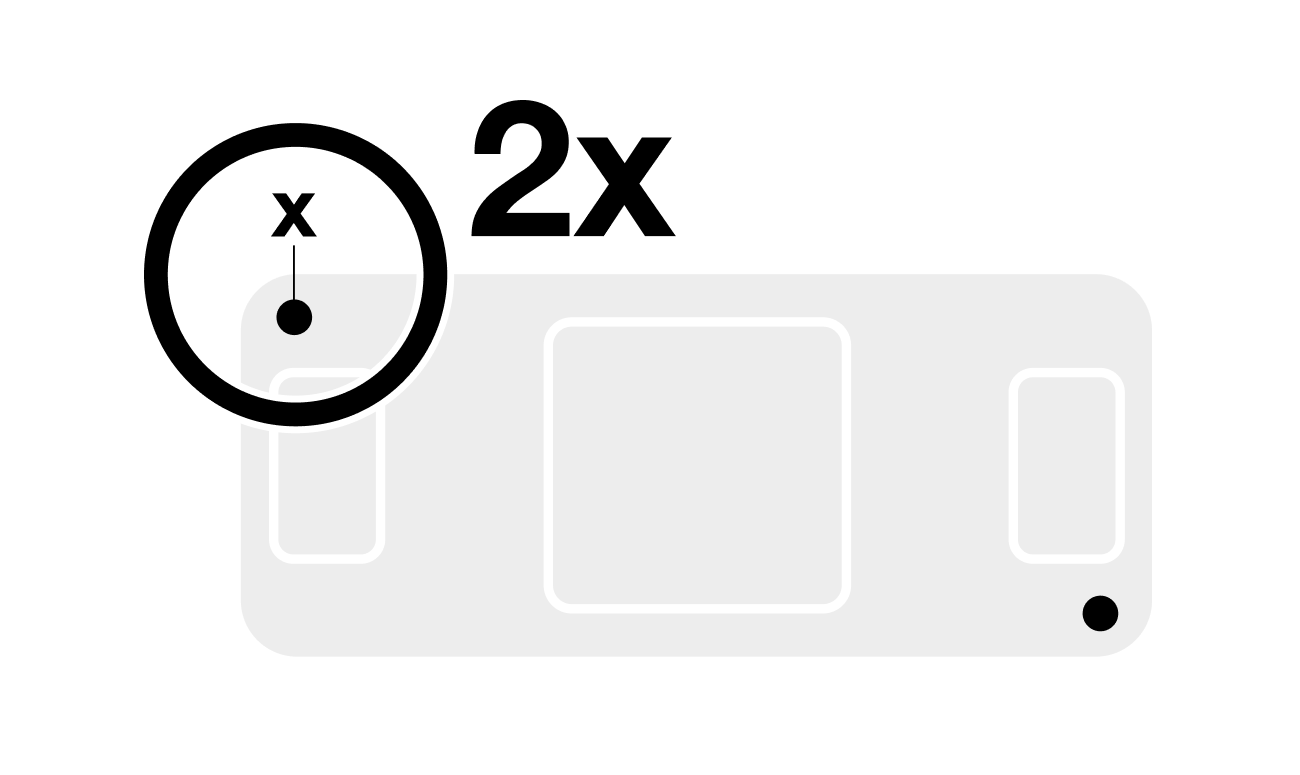
Connect shore power sensor
Disconnect all AC power sources before accessing electrical panels, switches, or devices.
-
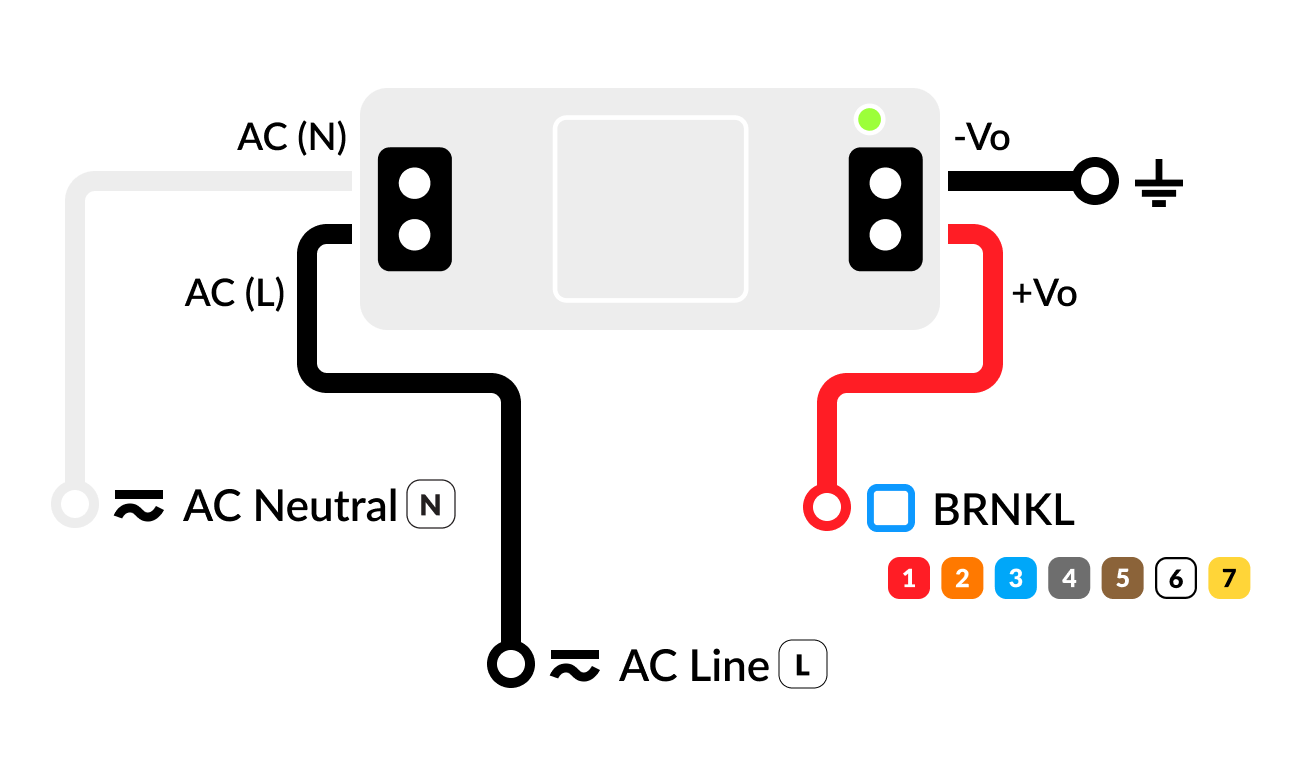
AC (N) terminal to non-inverted Neutral

-
AC (L) terminal to non-inverted Line

-
-Vo terminal to common ground

-
+Vo terminal to available input channel

Shore power connection settings
Set a wired channel on your BRNKL to act as a shore power connection.
To set shore power connection, follow these steps:
A | Open channel settings
Using your browser device, on the BRNKL-connected local network:
-
Go to the BRNKL Device Manager, select Settings

.png?cb=e4de334e189a408a941e789789d6fd6b)
-
From the Devices menu select Inputs.
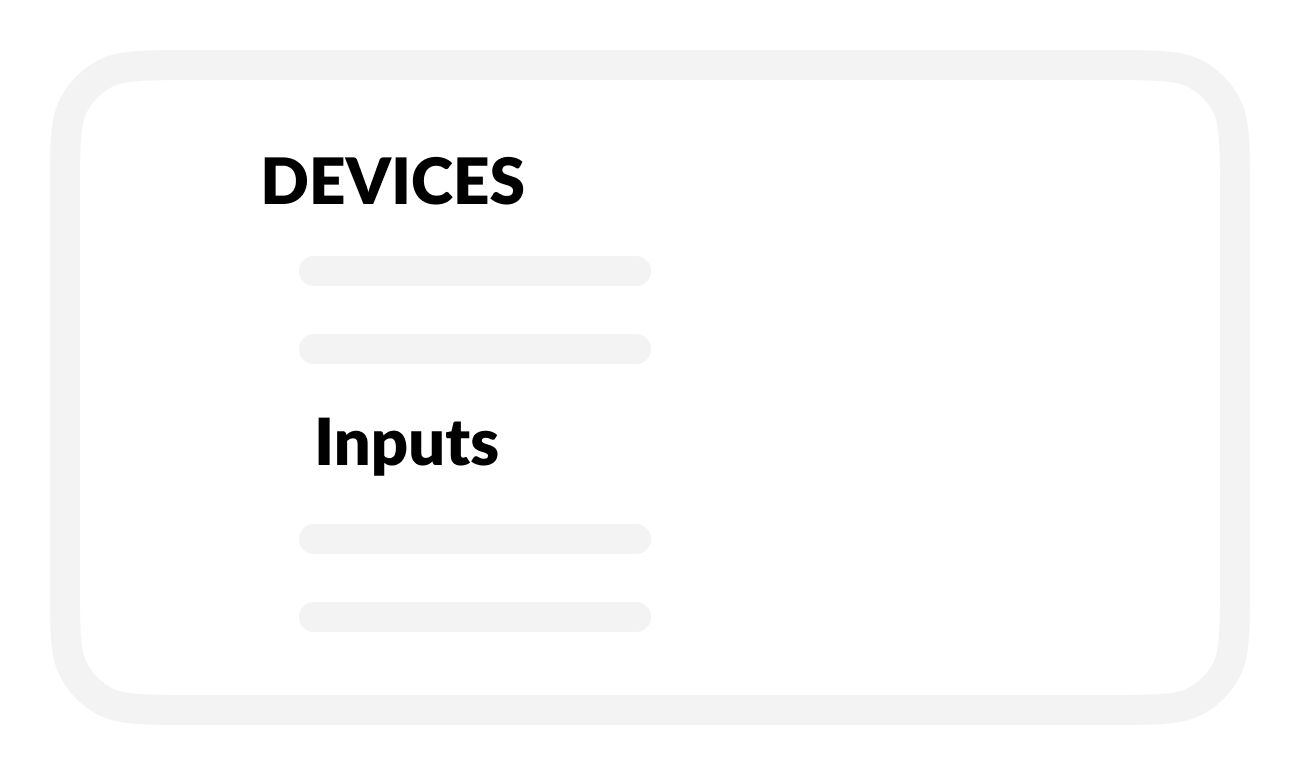
-
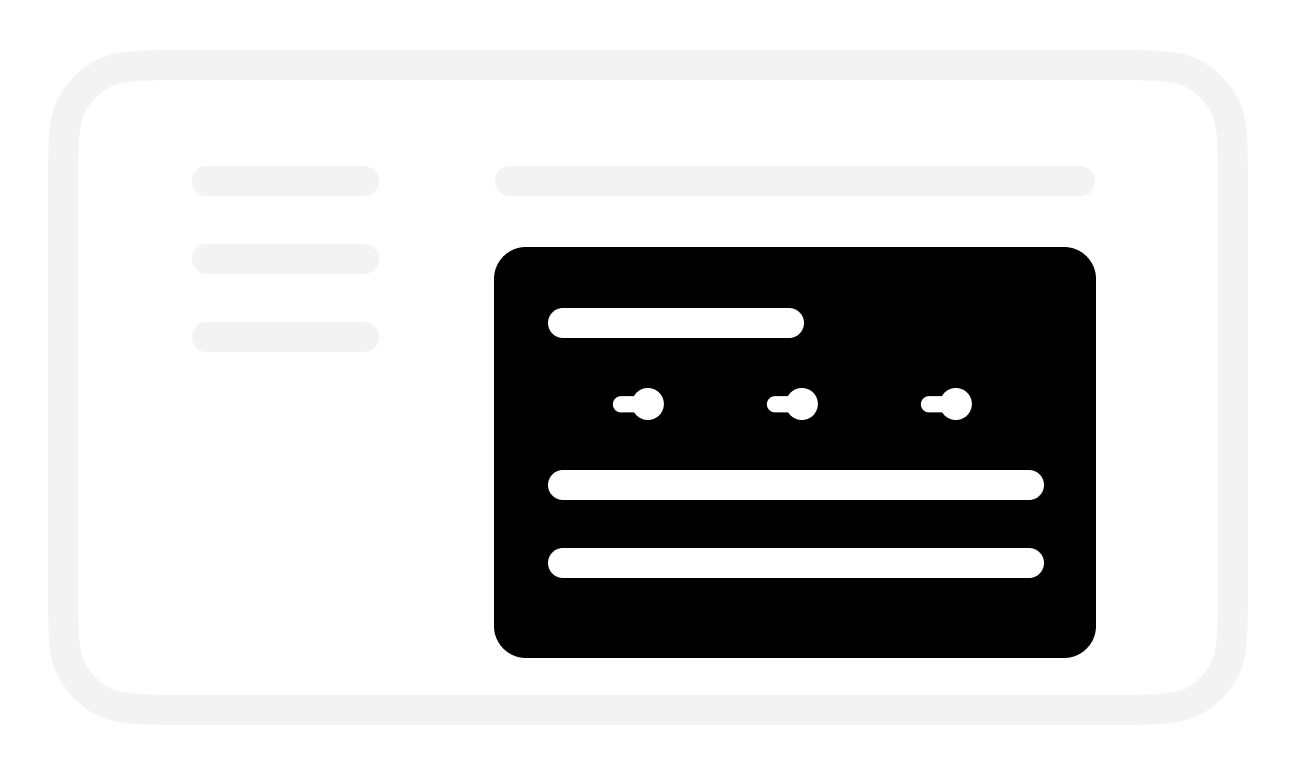
In INPUTS, find the channel (1-7) used to connect the device to the BRNKL.

-
Select the channel to open its settings.
B | Name channel
In the selected channel settings:
-
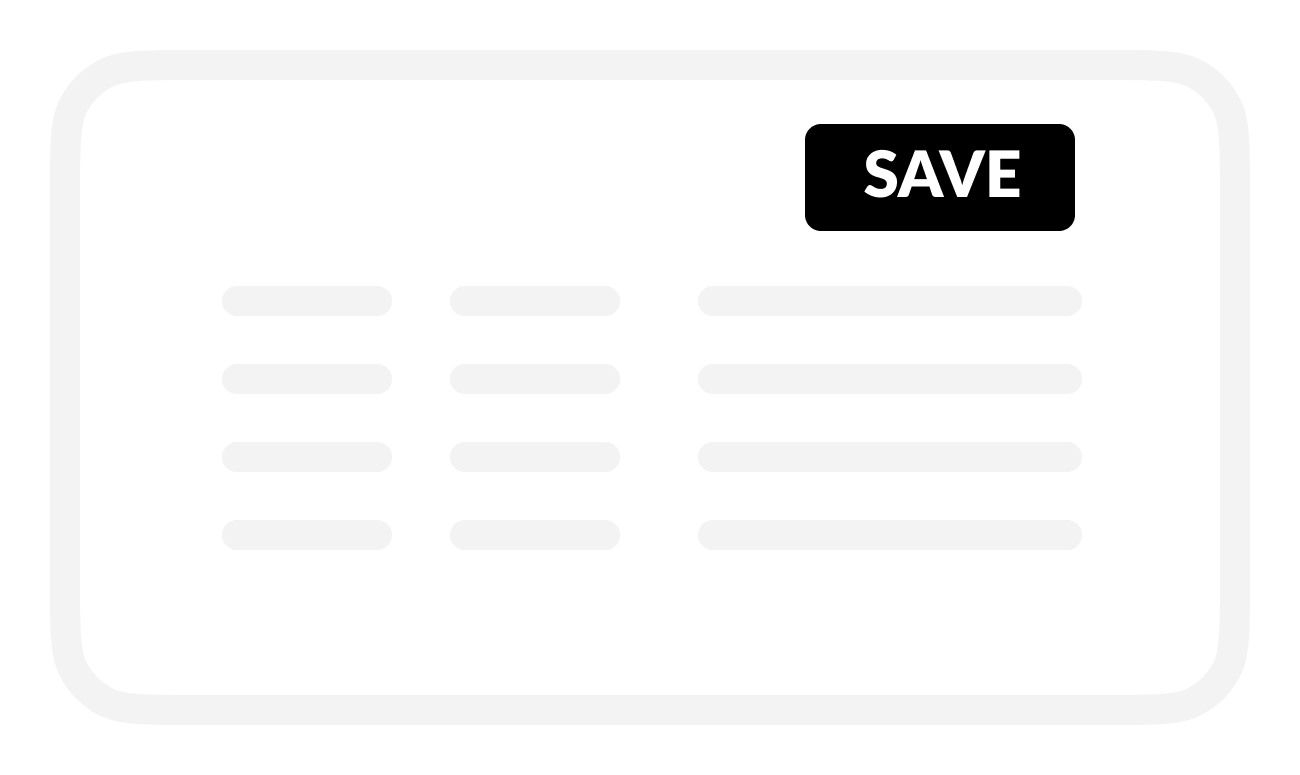
Replace the default Name with a descriptive name.
-
Use 12 or fewer characters.

-
-
Save.
C | Set connection to shore power
In the selected channel settings:
-
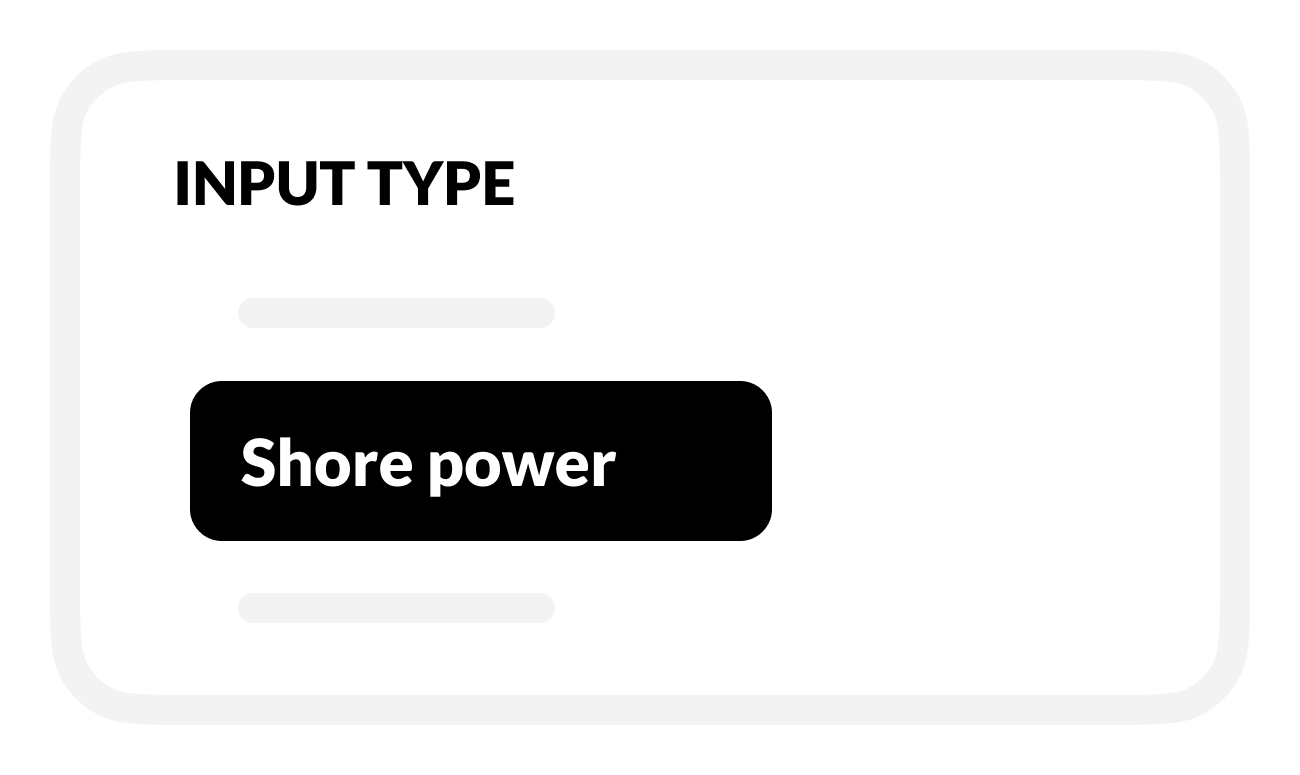
In Input type, select Shore Power.
D | Set up shore power connection monitoring
In the selected Shore Power activity settings:
-
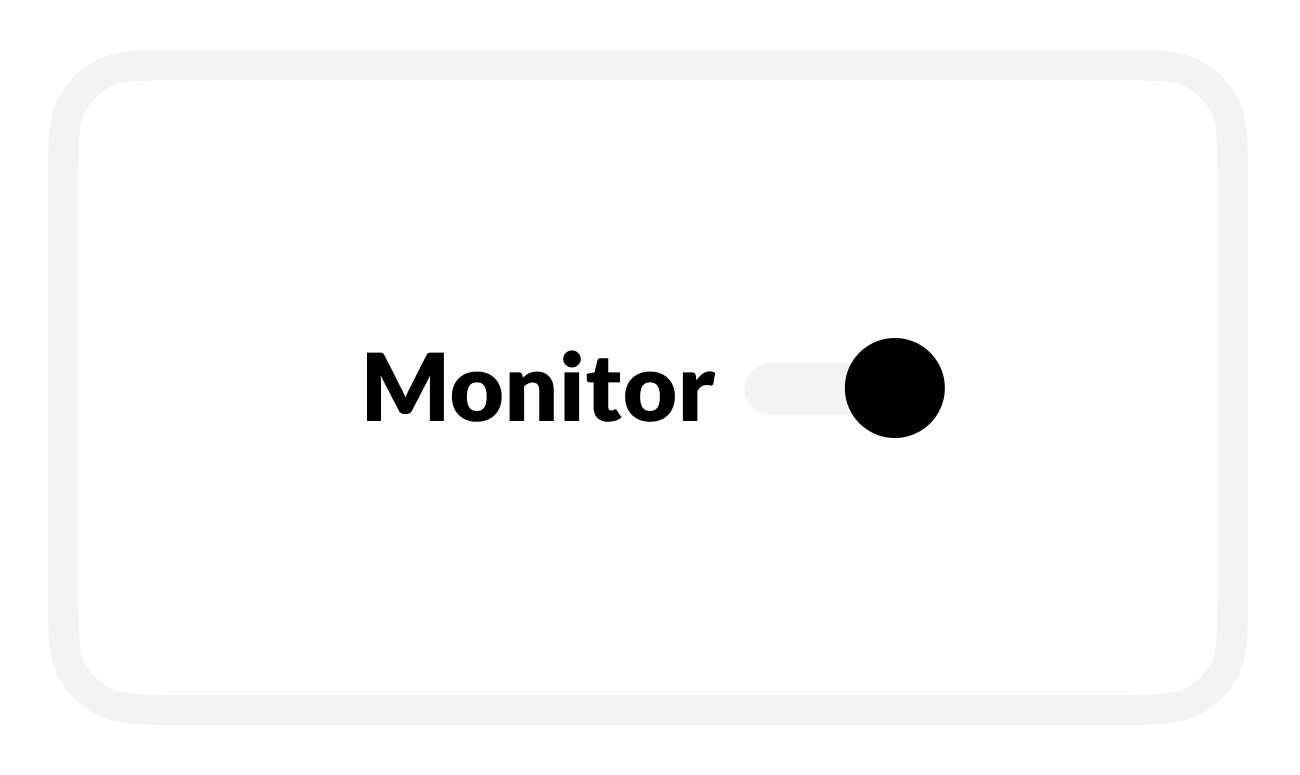
To check shore power connection activity, turn on Monitor.
-
BRNKL will monitor and display the state of the shore power connection:
-
On the BRNKL Device Manager Dashboard, in real time.
-
In the BRNKL app (if connected), updated every 15 minutes.
-
-
-
Save when complete.
E | Set up shore power connection alerts
-
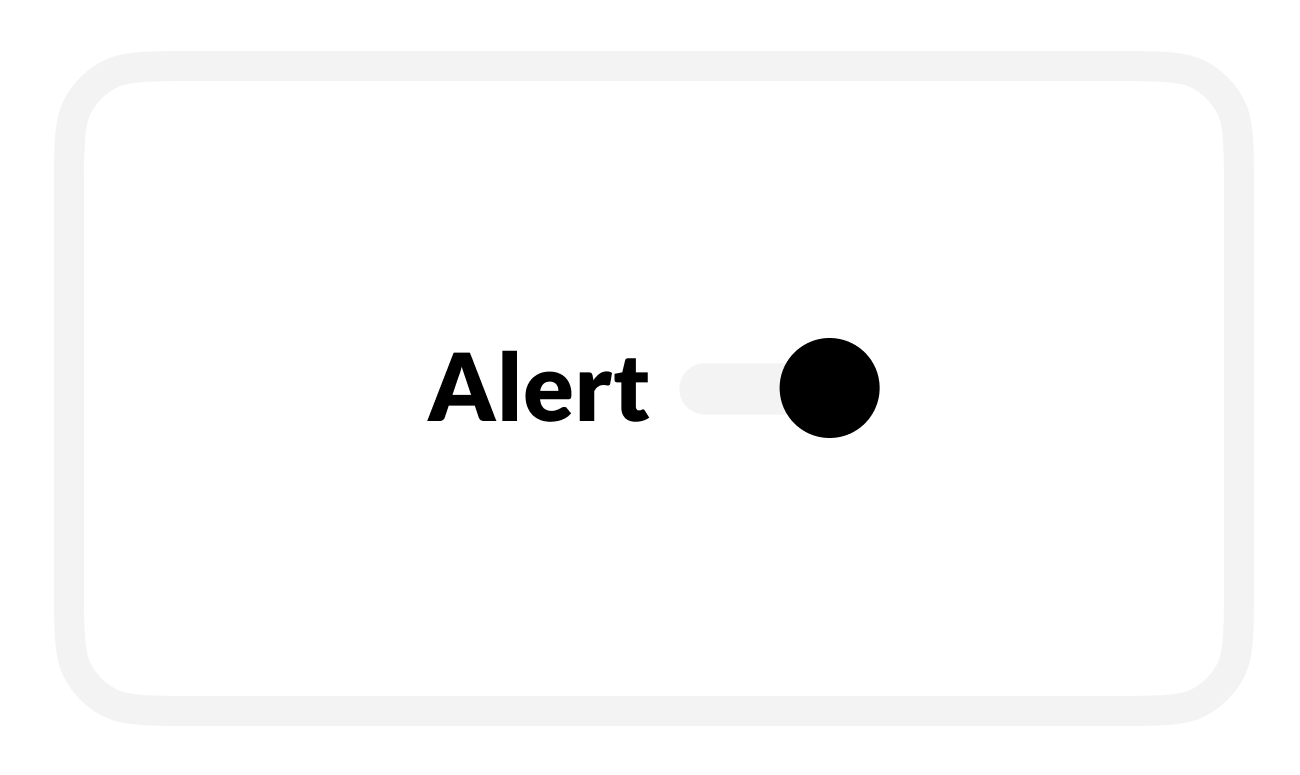
To find out that shore power connects or disconnects, turn on Alert.
-
While Armed, when there’s a shore power connection event BRNKL will immediately send an alert.
-
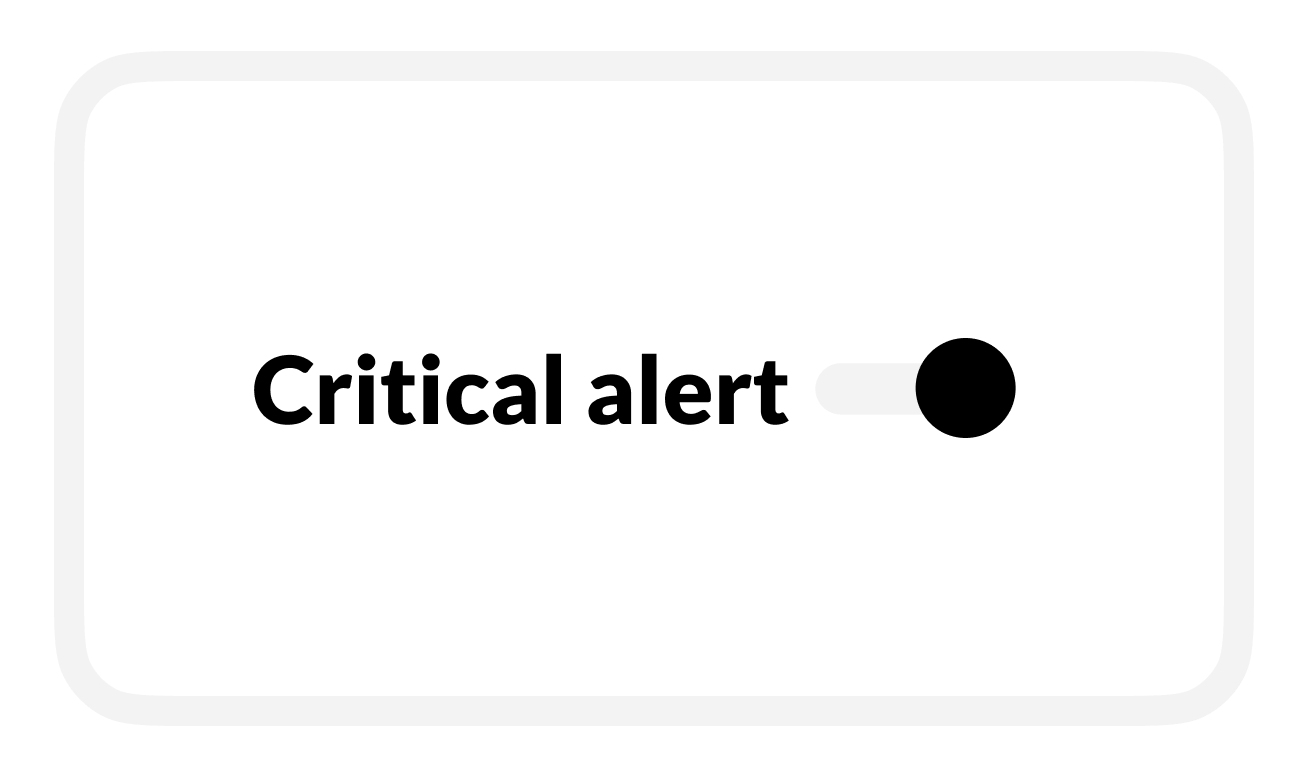
To find out about events while BRNKL is Disarmed, turn on Critical Alert.
-
BRNKL will send alerts while Armed or Disarmed.
-
-
-
To view video footage of the event, select a camera view to Record on alert.
-
Save when complete.
F | Set up activity recording
-
To review shore power connection history, turn on Record.
-
BRNKL will record and store related data.
-
-
Save when complete.