
The BRNKL Blue is accessed through two interfaces:
-
BRNKL app (remote only) — for monitoring vessel status, viewing live or recorded video, and receiving alerts from anywhere.
-
BRNKL Device Manager (local and remote) — for managing connected devices, configuring system settings, and reviewing collected data. Available both onboard and remotely via internet.
Video walkthroughs
Connect the mobile app
Prerequisites
-
BRNKL Blue installed and connected to internet
-
Mobile device with internet connection
-
BRNKL serial number — printed on the device and its packaging
-cropped.svg?cb=d3952ac4003c2c31af84d070a9a1a6ec)
If you already have a BRNKL app account
-
Open the BRNKL app on your mobile device.
-
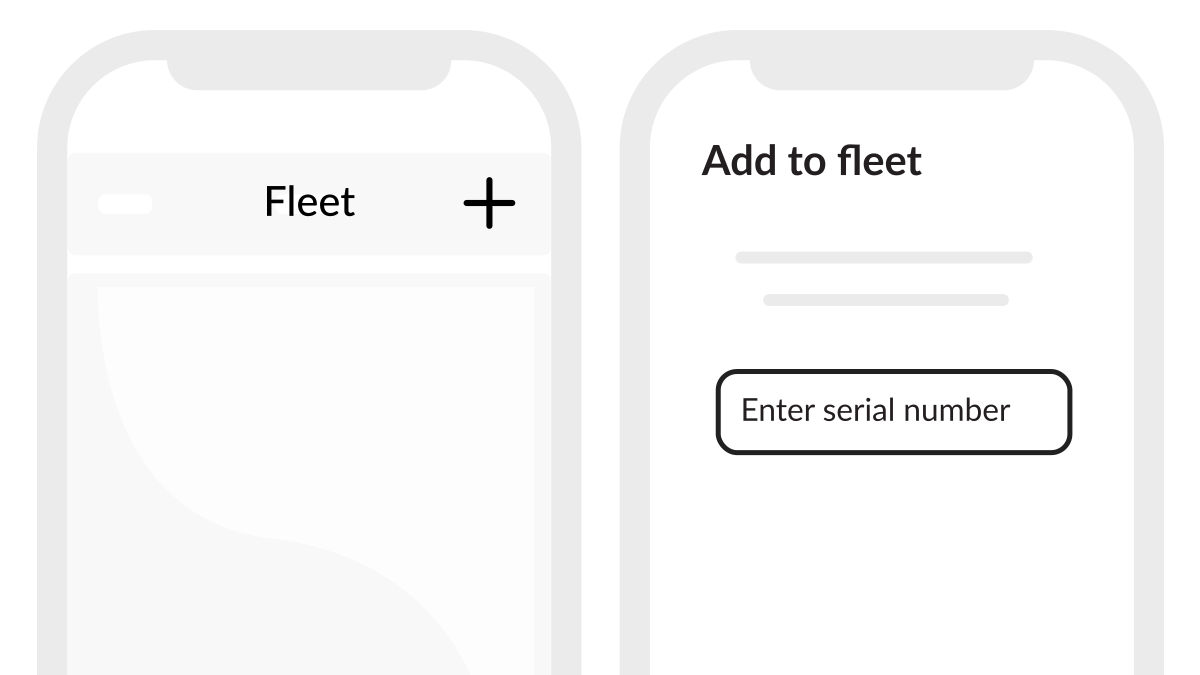
From Map, select the active BRNKL name on the status bar.
-
From Fleet, select + in the top right.
If you don't have a BRNKL app account
-
Download and install the BRNKL app from the App Store or Google Play.
-
Open the app and select Create account, then follow the prompts.
Add device to app
-
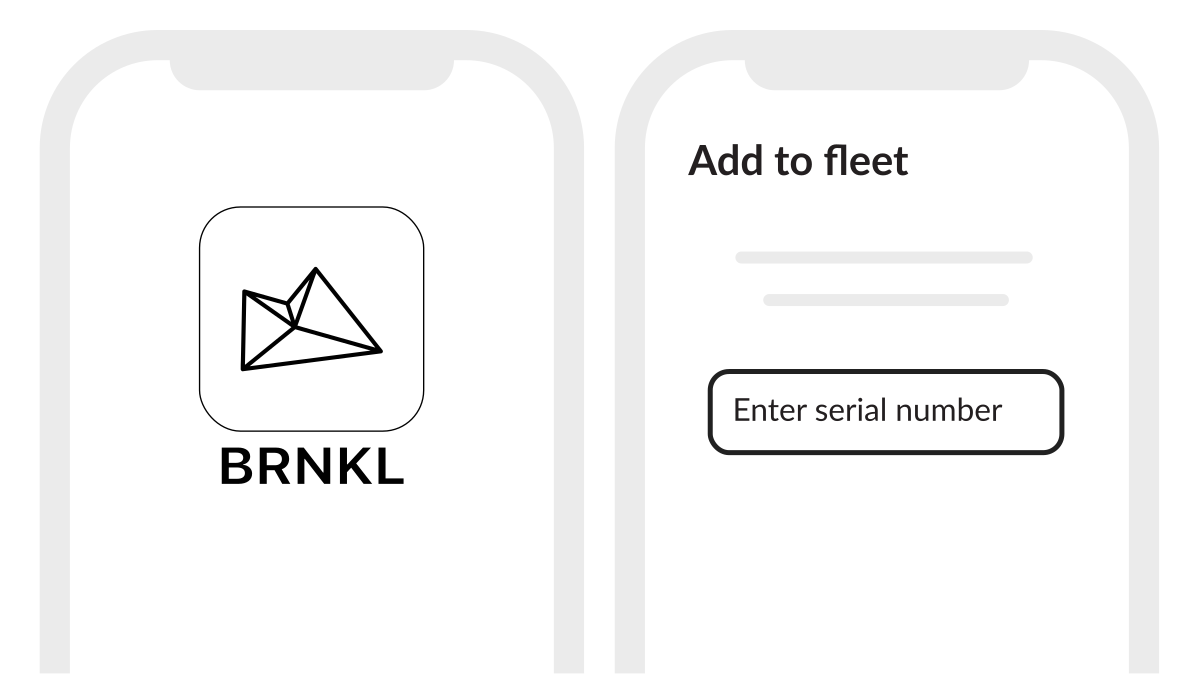
When prompted, enter the serial number or scan the QR code on the BRNKL Blue or its packaging.
-
Select Installer or Owner depending on your role, then select Add BRNKL.
Installer accounts provide temporary access only. Use the Owner role for permanent installations.
-
From Map, check the status bar — the active BRNKL is now connected to the app account.
Access Device Manager
The Device Manager can be accessed two ways: remotely via a secure tunnel, or onboard via the local network.
Remote access
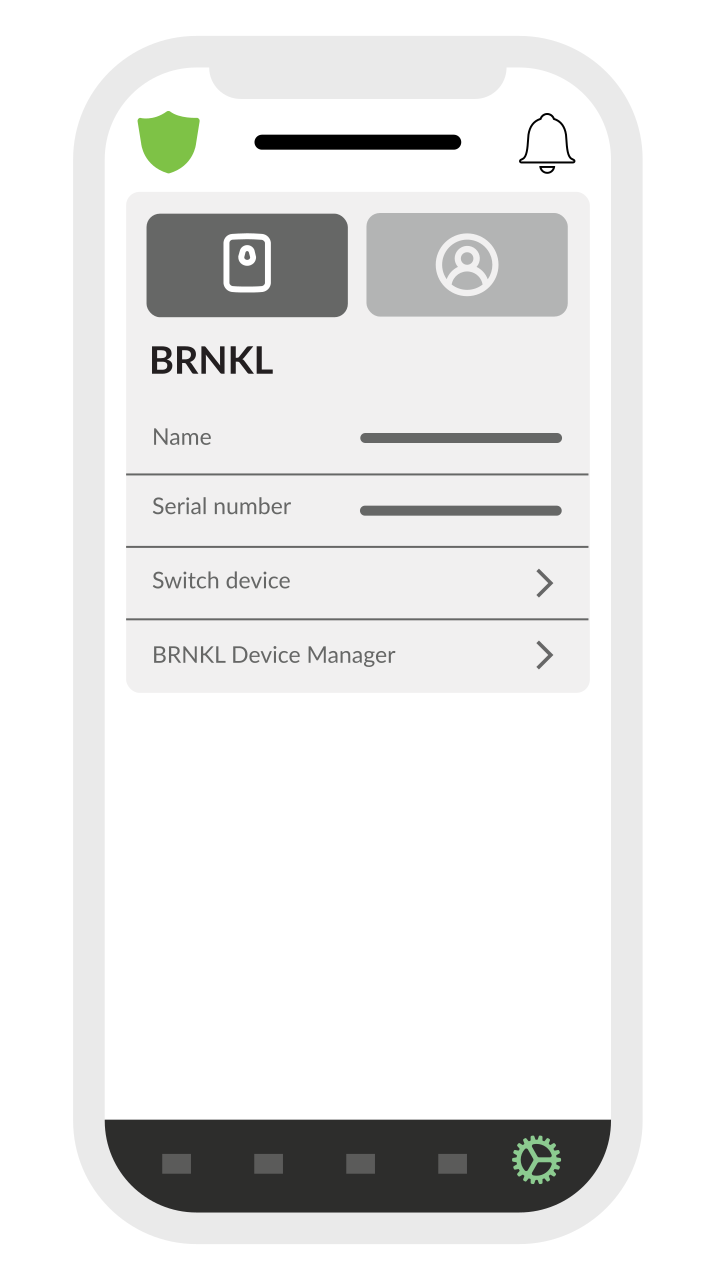
Open the BRNKL app. From Settings, select BRNKL Device Manager. A new tab will open to the Device Manager URL (https://<tunnel_id>.brnkl.co).
Local access
Using a browser on the same local network as the BRNKL Blue, enter the device's serial number followed by .local in the address bar.
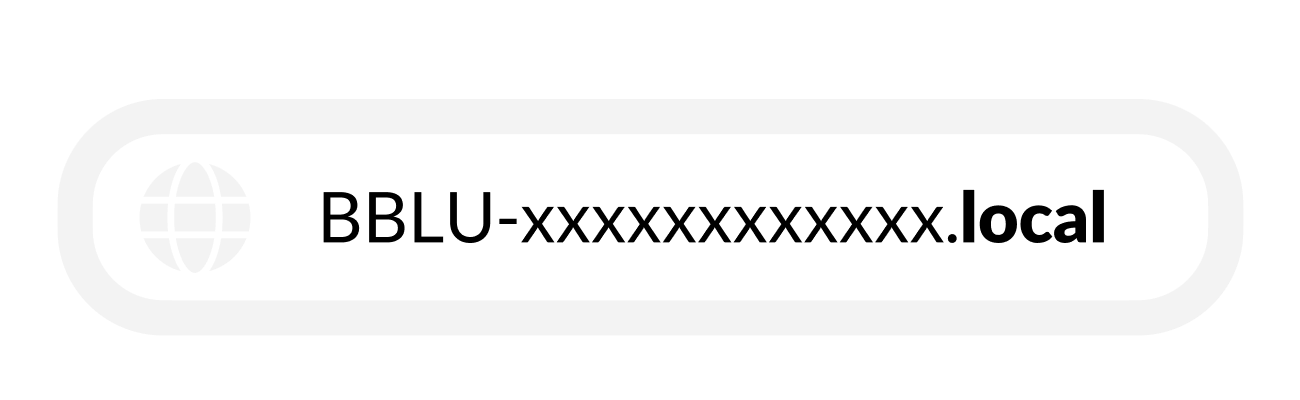
Depending on network configuration, the .local address may not resolve. If so, use the BRNKL Blue's IP address directly. The IP address is available in the network router's client list, or on the Device Manager network settings page.
Create a Manager ID
The first time the Device Manager is accessed, the system prompts for a Manager ID.
Manager IDs are specific to a single BRNKL device and are distinct from BRNKL app User IDs, which are linked to an email address. Additional Manager IDs can be created later on the Device Manager settings page.
Follow the Create Manager ID prompts to create the account and set basic device settings. Subsequent Device Manager logins will require this Manager ID.