
Expand your BRNKL Blue with wireless sensors and devices. Wireless devices use Z-Wave to communicate with the BRNKL Blue through a wireless dongle, letting you add sensors and remotes throughout the vessel without running new wiring.
A wireless dongle is required. Wireless devices will not pair or function without one. If your BRNKL Blue does not have a wireless dongle installed, see Connect wireless dongle before continuing.
Video walkthrough
Pair a wireless device
The general pairing flow is the same for every supported wireless device. Each device-specific guide documents its quirks (button locations, press patterns, LED behaviour).
-
Power the device — typically by inserting batteries, removing a plastic battery tab, or connecting wired power.
-
In BRNKL Device Manager, go to Settings > Wireless and click + Add Device. A prompt will appear: "Set device to inclusion mode."
-
Put the device into inclusion mode (typically by pressing its pairing button three times quickly). See the device-specific guide for the exact procedure.
-
When prompted, enter the device's 5-digit PIN. The PIN is typically printed on the device, the packaging, or inside the battery compartment.
-
Enter a descriptive name. The device will appear in the Wireless device list once pairing is complete.
If pairing fails, try an exclusion first, then repeat the pairing process. If still unsuccessful, factory reset the device and try again. See Troubleshooting wireless devices for more help.
Remove a wireless device
-
Put the device into exclusion mode (typically by pressing its pairing button three times quickly). See the device-specific guide for the exact procedure.
-
In BRNKL Device Manager, go to Settings > Wireless, select the device, and click – Remove.
Configure wireless device settings
After pairing, click the device in the Wireless list to access its activity settings. Some wireless devices expose multiple endpoints — for example, an open/close sensor exposes both an Open/Close state and a Battery Level reading. Each endpoint is configured independently.
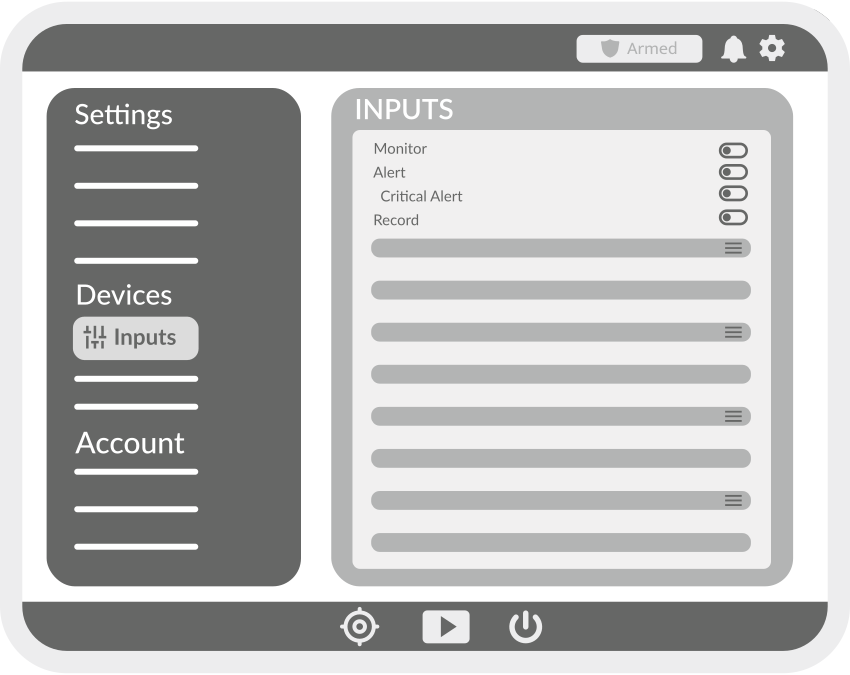
Toggles
These four toggles appear on every input, NMEA 2000, and wireless device activity.
-
Monitor — displays the activity as a tile on the BRNKL dashboard.
-
Alert — sends a notification when the activity changes state or crosses a threshold, while the system is armed.
-
Critical Alert — sends a notification even when the system is disarmed. Only available when Alert is enabled.
-
Save data — saves the activity history to internal storage. Recorded data is reviewable in the BRNKL Device Manager dashboard.
Analog endpoints
Applies to endpoints that report a varying value, such as a battery level percentage or a temperature reading.
These settings apply to analog activities — values that vary across a range (e.g., voltage, temperature, RPM, fuel level).
-
Name — descriptive name for the activity, shown on the dashboard and in alerts. Use 12 characters or fewer for best display.
-
Type — selects a preset that pre-configures unit, thresholds, and alert behaviour (e.g., Battery, Bilge, Custom Analog).
-
Preferred Unit — unit of measurement for the displayed value. Available units depend on the selected Type.
-
Upper Threshold — value above which an alert is generated, when Alert is enabled.
-
Lower Threshold — value below which an alert is generated, when Alert is enabled.
-
Record on Alert — selects a camera to record a video clip when an alert is triggered.
-
Trigger on Alert — selects an output to activate when an alert is triggered (e.g., siren, light).
-
Time Between Alerts — minimum interval between repeated alerts. Prevents notification spam when a value oscillates near a threshold.
Digital endpoints
Applies to endpoints that report a two-state value, such as open/closed or smoke/no-smoke.
These settings apply to digital activities — two-state values (e.g., open/closed, on/off, armed/disarmed).
-
Name — descriptive name for the activity, shown on the dashboard and in alerts. Use 12 characters or fewer for best display.
-
High Name — label displayed when the activity is in its high (on) state, e.g., Open, Running, Connected.
-
Low Name — label displayed when the activity is in its low (off) state, e.g., Closed, Stopped, Disconnected.
-
Alert When — state that triggers an alert: High, Low, or Both.
-
Record on Alert — selects a camera to record a video clip when an alert is triggered.
-
Trigger on Alert — selects an output to activate when an alert is triggered (e.g., siren, light).
-
Time Between Alerts — minimum interval between repeated alerts. Prevents notification spam when a state changes rapidly.