
This page covers connecting your MFD or plotter network to the BRNKL Blue so that BRNKL can access cameras attached to that network. For the camera setup workflow itself, see Add camera.
Many marine cameras run on a dedicated MFD network (Garmin, Furuno, Raymarine, Simrad/Lowrance) that's isolated from the vessel's internet network. To bring those cameras into BRNKL, the MFD network must be bridged to the BRNKL Blue using a USB-to-Ethernet dongle.
If you're not sure whether your setup needs this step, use the network configuration tool on the Get started page.
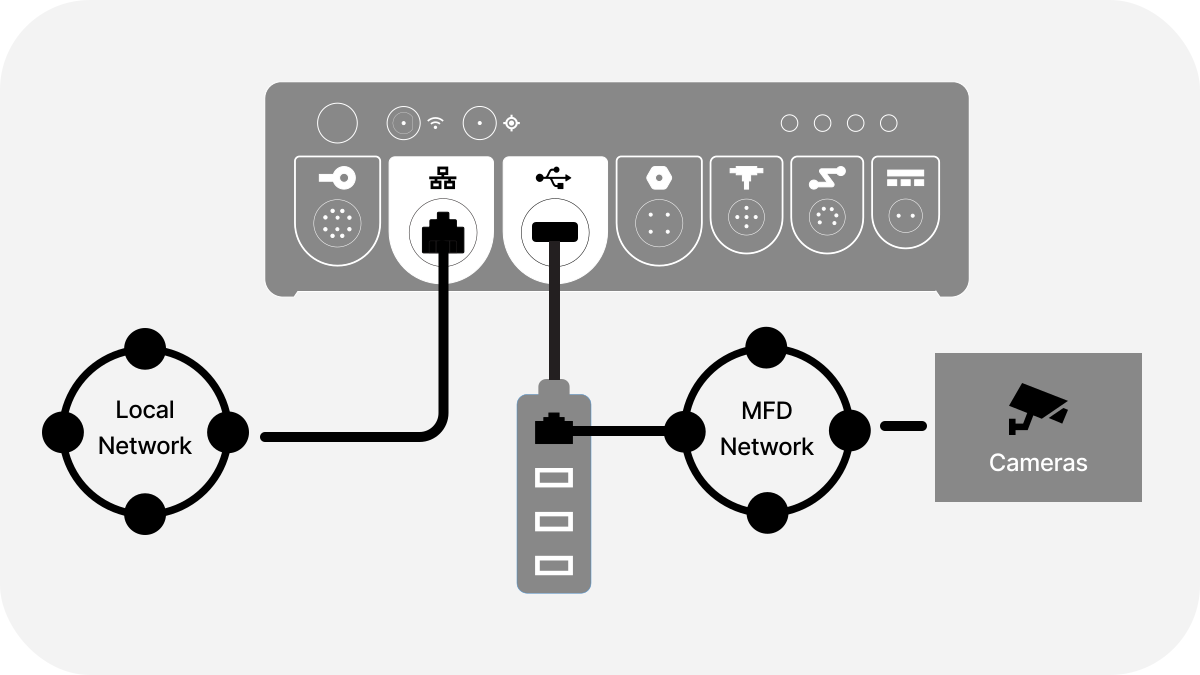
Local network refers to your internet-facing network, such as Starlink, Peplink, etc.
Prerequisites
-
Cameras prepared and online on the MFD network
-
A USB-to-Ethernet dongle (a hub with extra USB ports is recommended so the wireless dongle and external storage can share the same hub)
-
An open network port on your MFD network or network switch
-
Switches and cameras configured to stay powered when the MFD is turned off. If using a Garmin MFD, see Connect GMS 10 switch to ground terminal.
Connect the networks
-
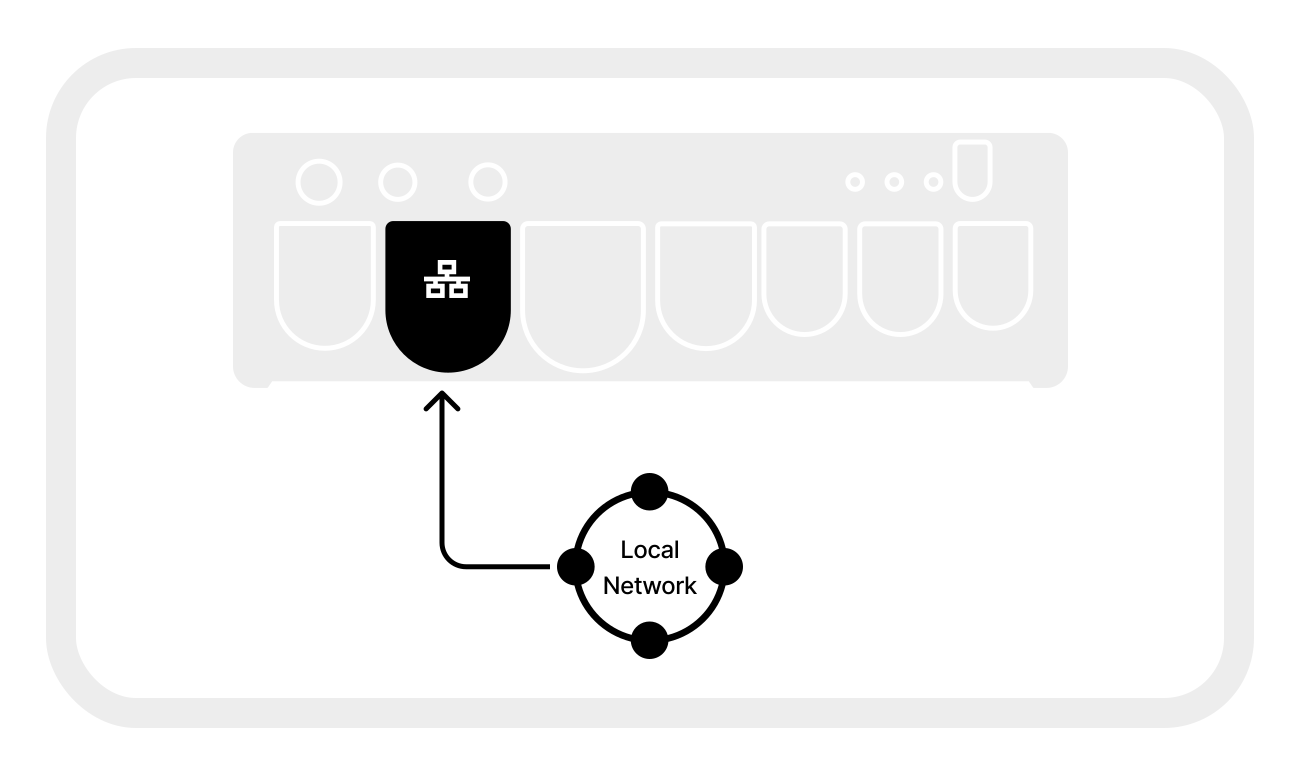
Connect your local network to the internal Ethernet port of the BRNKL.
-
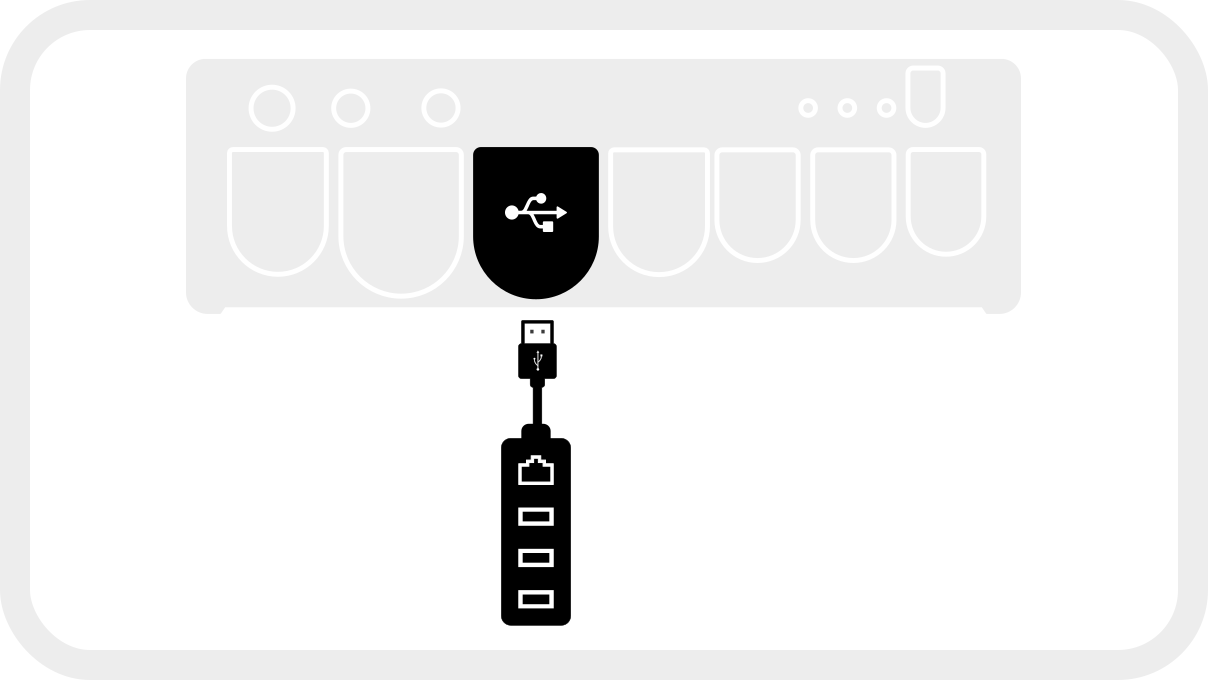
Connect the USB-to-Ethernet dongle to a USB port on the BRNKL.
-
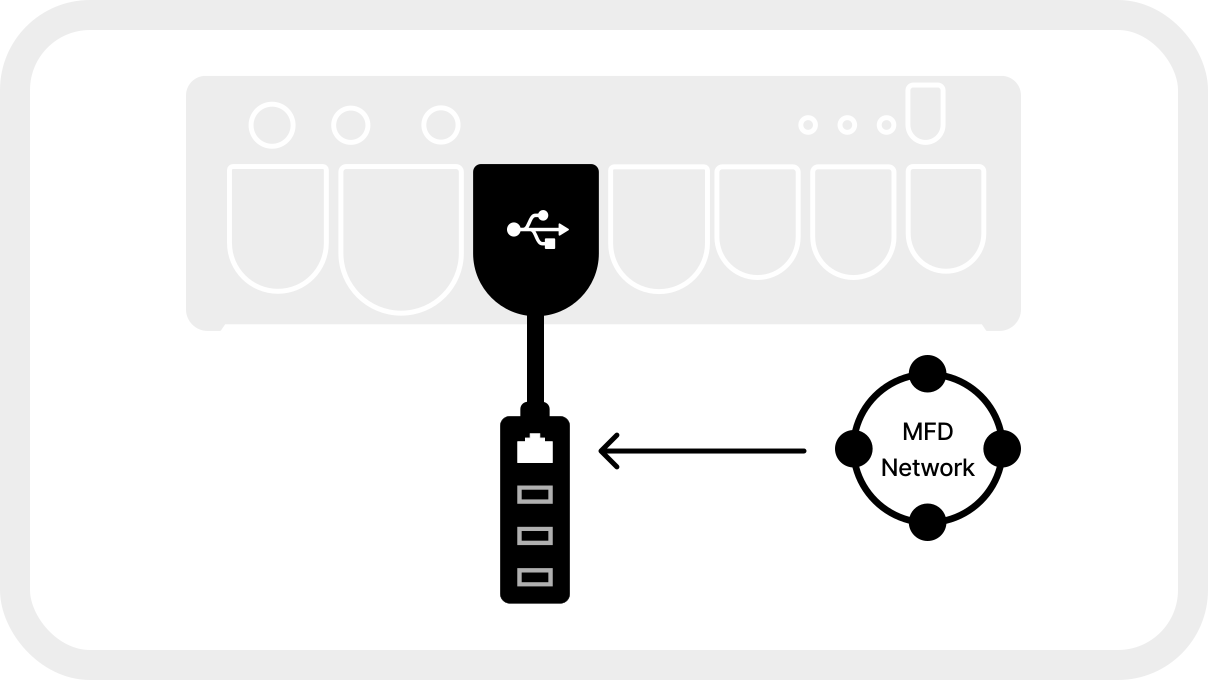
Connect your MFD network to the USB-to-Ethernet dongle.
-
Power on the MFD network and verify cameras appear on the MFD.
Configure the secondary Ethernet adapter
-
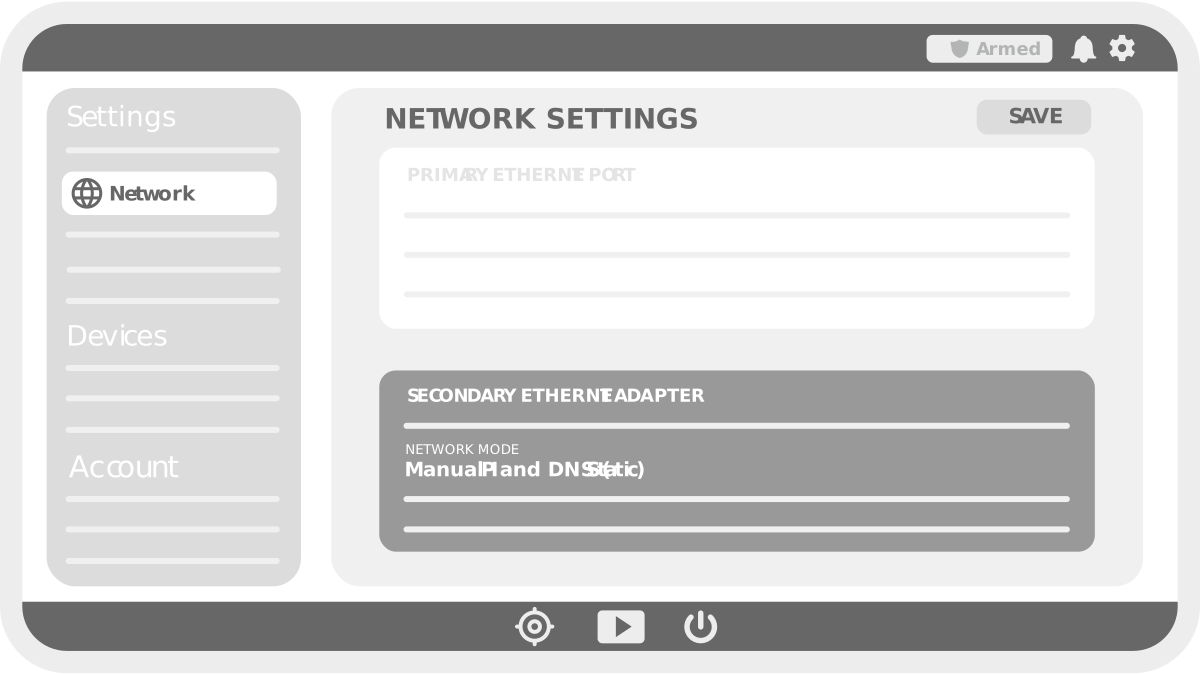
In BRNKL Device Manager, go to Settings > Network.
-
Find the secondary Ethernet adapter section and set Network Mode to Manual IP and DNS (Static).
-
Click Save.
The MFD network is now bridged to the BRNKL. Continue with the brand-specific guide on Add camera to add each camera to Device Manager.