BRNKL sends alerts when something happens that you've configured to be alert-worthy — a sensor crosses a threshold, a switch changes state, the boat leaves a geofence, an alarm is triggered. Alerts can be delivered to the BRNKL app, or email depending on user preferences.
Alert sources
Most alerts come from activity settings configured elsewhere:
-
Input activities — see Add input device for analog/digital threshold settings.
-
NMEA 2000 activities — see Add NMEA 2000 device.
-
Wireless device activities — see Add wireless device.
-
Geofence crossings — see Set up a geofence.
For each of these, the Alert toggle controls whether the activity sends a notification when triggered, and Critical Alert determines whether the notification is sent even when the system is disarmed.
Armed vs disarmed
The BRNKL operates in two states that control how alerts and notifications are generated: Armed and Disarmed.
Use disarmed mode while onboard to silence routine alerts (door sensors opening, motion detected on deck) without losing critical safety notifications like smoke, high water, or shore power loss.

Armed Mode
-
All alert events generate notifications in the Device Manager.
-
If remote access is enabled, alerts will also trigger push and/or email notifications via the BRNKL App.
-
Alerts are logged in the Notifications page.
-
Typically used for security-related events.

Disarmed Mode
-
Only critical alerts generate notifications.
-
Critical alerts require immediate attention (e.g., bilge alarms).
-
Non-critical alerts are suppressed to avoid unnecessary notifications.
Time Between Alerts
Each activity has a Time Between Alerts setting that throttles repeat notifications. Useful to prevent notification spam when a value oscillates near a threshold.
Review past alerts
Past alerts and their associated event details are visible in the BRNKL app and in BRNKL Device Manager.
App Notifications
-
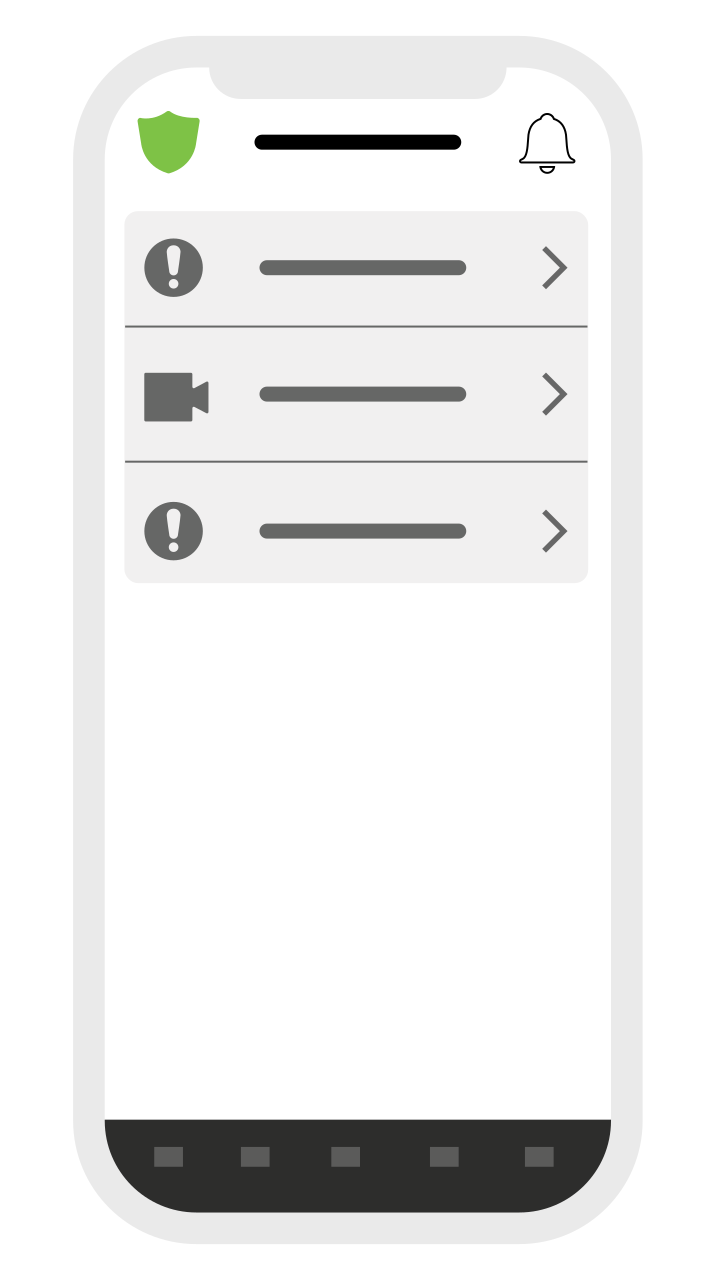
Press the bell
-
If an alert has an associated video clip, a thumbnail will be displayed.
-
Tap the thumbnail to load and review the video clip.
Device Manager Notifications
Pop-up Alerts
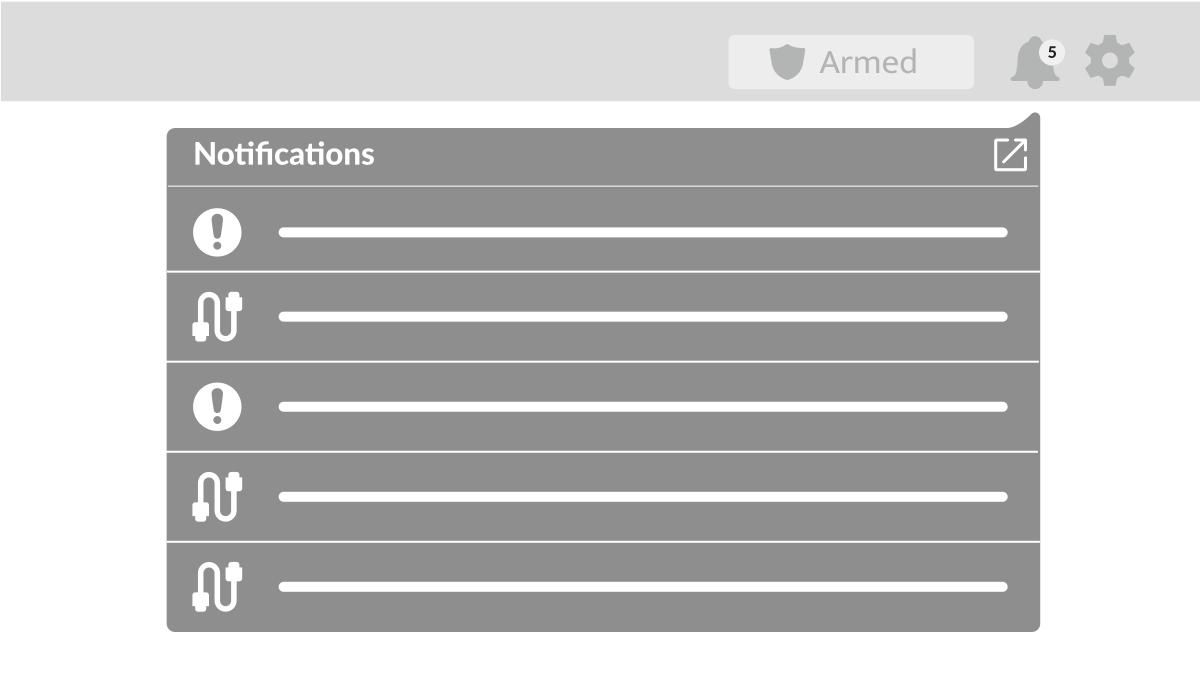
Notifications appear as a pop-up on the three main pages (Dashboard, Videos, Controls).
-
Displays the five most recent new alerts.
-
Expand the pop-up to view the full alert history.
Full-Screen List
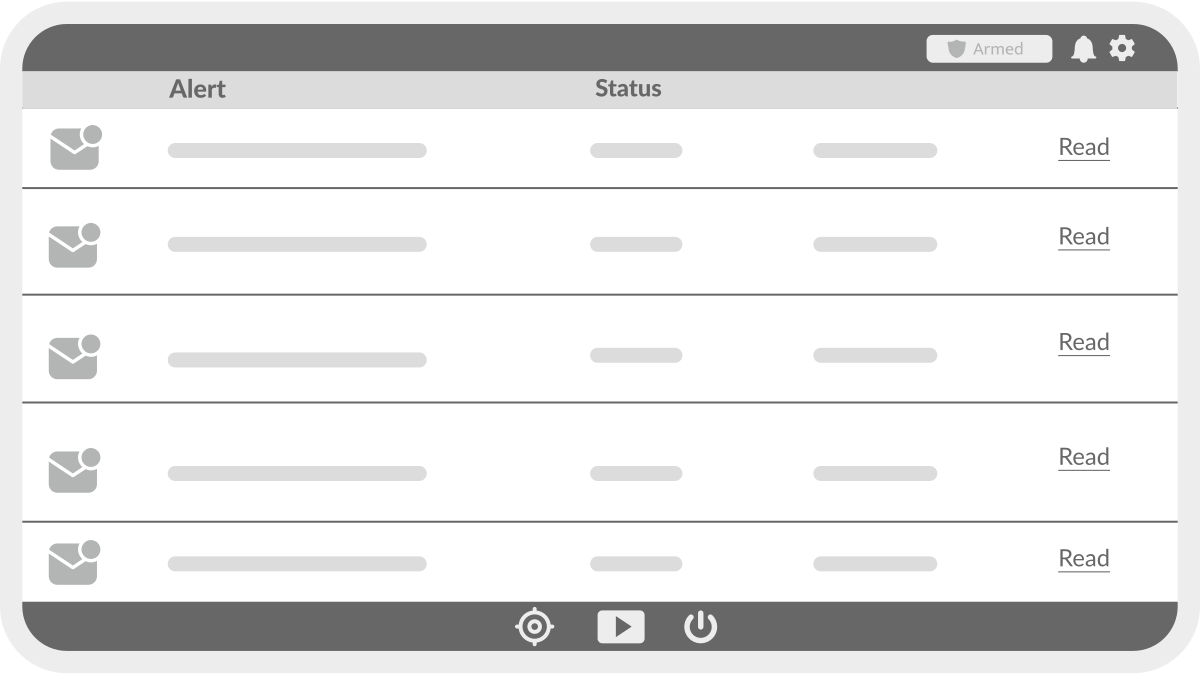
Provides a complete view of all alerts, both New (unread) and Read.
-
Includes links to associated recordings.
-
Clicking a recording link redirects to the Dashboard, setting the Replay Engine to the event’s timestamp.