
Review historical data on the dashboard and export data and video to a browser download or to an external drive.
Review data
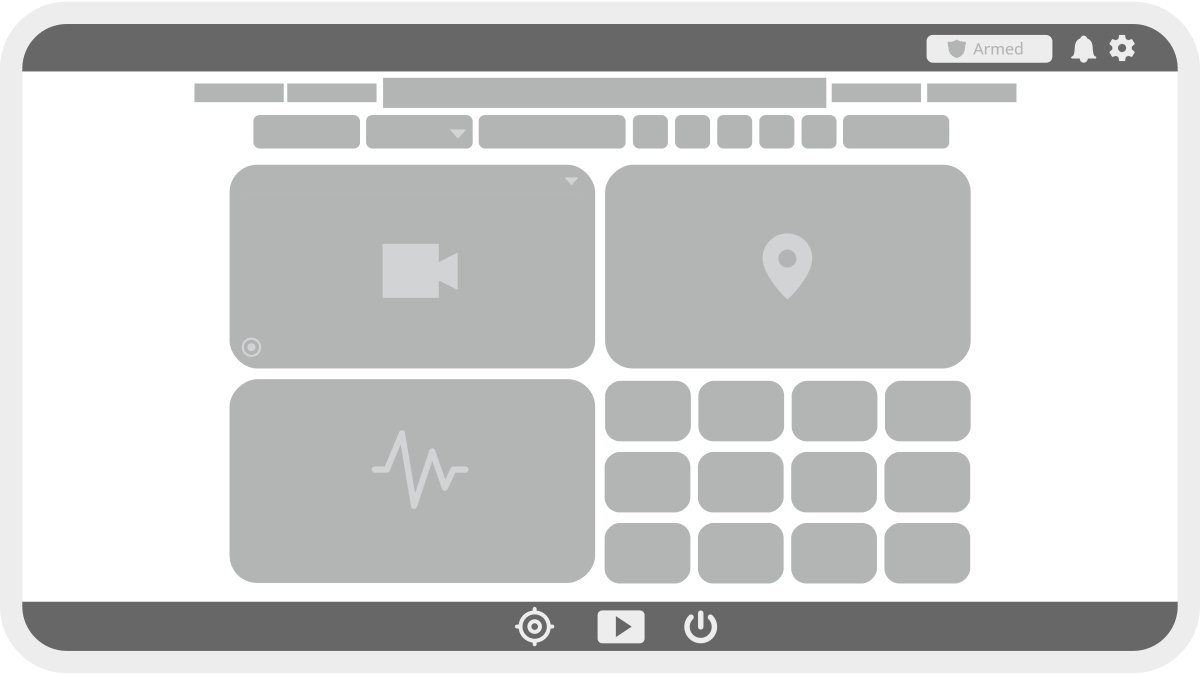
Data can be reviewed in BRNKL Device Manager from the Dashboard.
-
Graph widget — select parameters to review and plot data trends.
-
Replay engine — choose a specific time range to examine historical data.
-
Timeline bar — scrub through time to view past events as they happened.

Synchronised review
When the time range is adjusted in the replay engine, all dashboard elements update to match:
-
Video widget — displays recorded footage from the selected time and camera (if available).
-
Tile data — updates with historical sensor readings.
-
Map location — shows GPS position at the specified time.
-
Graph widget — reflects data trends for the chosen period.
Export data and video
Saved data can be exported two ways:
-
To browser — exports all data except video to the browser viewing Device Manager. Compressed into a ZIP file for download.
-
To external drive — exports all data, including video, to a connected USB or SD card. Supported file systems: exFAT, NTFS, ext3, ext4, FAT32, vFAT.
Export steps
-
Open BRNKL Device Manager > Settings > Data Management.
-
Click Create next to either Export to Browser (excludes video) or Export to External Drive (includes video).

-
Select a time range.
-
Use the dropdown to choose the data to export.
-
Click Export to begin.

After export
-
External drive export — data is saved directly to the connected storage device.
-
Browser export — data is compressed into a ZIP file. Click the download button to save it locally.

Auto-export to external drive
BRNKL can automatically copy new video clips to an external drive as they are created. When a drive is connected and Auto-Export is enabled, any new clip recorded while the drive is connected is copied to the drive immediately.
To configure auto-export:
-
Connect an external drive. Supported file systems: exFAT, NTFS, ext3, ext4, FAT32, vFAT.
-
Open Device Manager > Settings > Data Management.
-
Under External Drive, turn on Auto-Export Options.
-
Check Alert video clips to include alert-triggered recordings in the auto-export.
-
Click Save.
Auto-export copies clips as they are created. It does not export existing clips already stored on the internal drive. Use Export to External Drive to export previously recorded footage.