
This page covers the device-specific setup for a Modbus TCP I/O expansion unit (Advantech ADAM series). For general input setup and activity settings, see Add input device.
Overview
BRNKL Blue supports Modbus TCP, a network-based protocol for I/O expansion. Advantech ADAM units connect to the vessel network and expose additional input channels to the BRNKL Blue over Modbus TCP — useful when the seven hardwired input channels aren't enough, or when inputs are needed far from the BRNKL Blue itself.
The recommended model for most installations is the ADAM-6251, which provides 16 isolated digital input channels. The ADAM-6217 is available for installations requiring analog inputs.
BRNKL Blue supports Modbus inputs only. Modbus outputs are not supported.
Prerequisites
-
The ADAM unit is powered on and connected to the vessel network.
-
The ADAM/Apax .NET Utility is installed on a Windows PC. Download from Advantech support.
On Windows 8 or later, Microsoft .NET Framework 2 must be enabled before installing the ADAM/Apax Utility. See Microsoft's instructions. This process can take 10–20 minutes.
ADAM-6251: Configure DIP switches
The ADAM-6251 supports both dry contact and wet contact inputs. Each channel must be individually configured using the DIP switches on the back of the unit before wiring. All channels default to dry contact.
There are four switches (SW1–SW4), each with four positions. The mapping of switch positions to channels is:
|
Switch |
Position 1 |
Position 2 |
Position 3 |
Position 4 |
|---|---|---|---|---|
|
SW1 |
Ch3 |
Ch2 |
Ch1 |
Ch0 |
|
SW2 |
Ch7 |
Ch6 |
Ch5 |
Ch4 |
|
SW3 |
Ch11 |
Ch10 |
Ch9 |
Ch8 |
|
SW4 |
Ch15 |
Ch14 |
Ch13 |
Ch12 |
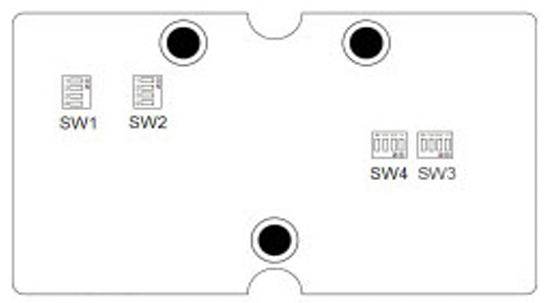
For each channel, set the corresponding switch position based on the contact type being wired:
|
Contact type |
Switch position |
Reference terminal |
Typical use |
|---|---|---|---|
|
Dry contact |
ON (default) |
|
Relay outputs, switch closures (no external voltage) |
|
Wet contact |
OFF |
|
Active (voltage-driven) signals, 0–30 V DC |
When used on a vessel with a common ground, the DGND and DI COM terminals can both be connected to the -Vs ground terminal.
The reference terminal differs between dry and wet contact wiring (DGND vs DI COM). Using the wrong terminal for the configured contact type will result in inputs not being detected correctly. Verify DIP switch settings match the wiring before powering the unit.
Refer to the ADAM-6251 startup manual for full wiring diagrams.
Configure ADAM unit network settings
-
Open the ADAM/Apax .NET Utility and scan the network. The ADAM unit should appear in the left-hand panel.
-
If the unit does not appear, verify it is powered on and properly connected to the network.
-
-
Click the ADAM unit. If prompted for a password, the default is
00000000(eight zeros). -
Select the Network tab.
-
If the unit has not yet been assigned an address, ensure DHCP is selected and click Apply. Note the assigned IP address.
-
Once the DHCP-assigned address is known, set a static IP address using that same address (or another appropriate address on the vessel network):
-
Set IP Address Mode to Static.
-
Enter the chosen IP address, subnet mask, and gateway.
-
Click Apply.
-
A static IP address is required to ensure the Modbus server entry in BRNKL Device Manager remains valid. DHCP-assigned addresses can change on power cycle.
Add Modbus server in BRNKL Device Manager
-
Open BRNKL Device Manager > Settings > Devices > Show More > Modbus.
-
Click Add Server in the top-right corner.
-
Enter a descriptive name and the ADAM unit's static IP address. Leave the port set to
502.
Add Modbus channels
-
Under the server you just created, click Add Channel.
-
Set Channel Type:
-
ADAM-6251 inputs → select Digital
-
ADAM-6217 inputs → select Analog
-
-
Configure thresholds, units, activity types, and any other channel-specific settings as required.
-
Click Save.
Verify
Confirm that expected input values are being reported correctly on the BRNKL dashboard. If inputs are not appearing, check that the ADAM unit's indicator LEDs correspond to the expected channel states.