
This page covers the device-specific steps for the Zooz ZSE41 Open/Close XS Sensor. For general pairing flow, prerequisites, and activity settings, see Add wireless device. For full product details, see the Zooz manufacturer's page.
The open/close sensor detects when a door, window, hatch, cowling, or other separation point has been opened or closed. It integrates with BRNKL alerts, event recording, and automations.
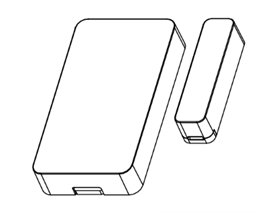
Pair open/close sensor
-
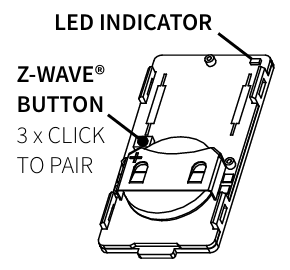
Carefully remove the back cover and remove the plastic battery tab (if present).
-
In BRNKL Device Manager, go to Settings > Wireless and click + Add Device.
-
Locate the pairing button inside the sensor and press it 3 times quickly. The LED will flash to indicate inclusion mode.
-
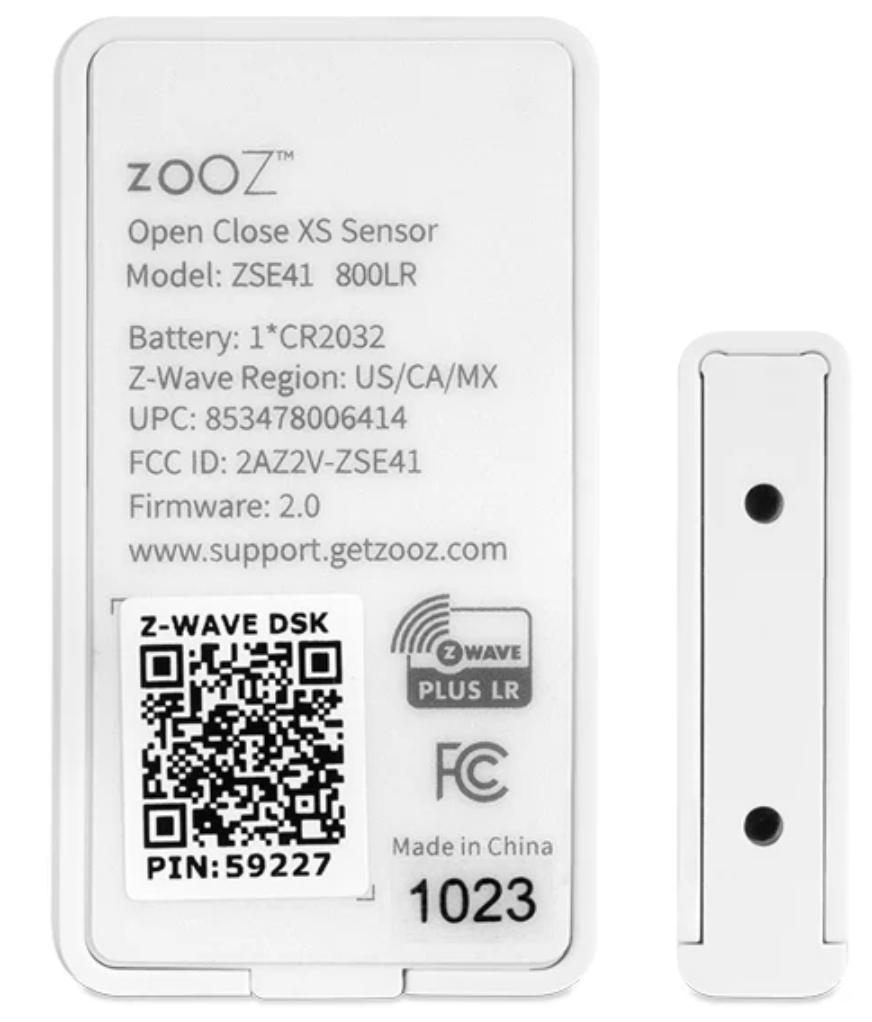
When prompted, enter the 5-digit PIN from the device packaging, back of the sensor, or inside the battery compartment, then enter a descriptive name.
Endpoints
Once paired, the open/close sensor exposes two endpoints in the Wireless device list, each configured independently:
-
Open/Close — digital state showing whether the sensor is open or closed. Use the High Name and Low Name fields to label the states (for example, Open and Closed).
-
Battery Level — analog reading reporting remaining battery percentage. Use the Lower Threshold to alert when the battery drops below a chosen level.
Remove open/close sensor
-
Open the sensor and locate the pairing button.
-
Press the button 3 times quickly. The LED will flash to indicate exclusion mode.
-
In BRNKL Device Manager, go to Settings > Wireless, select the device, and click – Remove.
Factory reset
-
Open the sensor and locate the pairing button.
-
Press the button twice quickly, then press again and hold for 10 seconds. The LED will blink, then go solid.
-
Press the button 2 more times quickly. The LED will flash 3 times to confirm the reset.