
If a wireless device is not connecting or transmitting data, follow the steps below to restore functionality.
Sensor is offline or not responding
If your wireless sensor is not showing activity, not updating, or has suddenly stopped working, follow these steps to reconnect it.
1. Power on or wake the sensor
Many battery-powered sensors enter a low-power sleep mode when not in use.
-
If the sensor has a button, press it to wake the device. On some sensors (open/close and temperature/humidity) the button is under the cover and needs to be pressed four times quickly.
-
If it has no button, remove and reinsert the battery.
-
You can also follow the manufacturer's instructions to wake or pair the device.
2. Move the sensor closer
Signal strength can affect connectivity.
-
Place the sensor closer to the BRNKL unit or wireless dongle and try pairing again. If successful, gradually move the sensor to its intended location.
-
Ensure the wireless dongle is connected via a USB extension cable, and is not placed close to other electronics.
-
If the sensor still does not connect in its intended location, a Range Extender may be needed.
3. Remove and re-add the sensor
If the steps above do not resolve the issue, remove the sensor from the BRNKL system and add it again.
-
In BRNKL Device Manager, go to Wireless and locate the sensor.
-
Click on the sensor name in the device list and select Remove. You will be prompted to set the device to exclusion mode.
-
Follow the device's instructions to enter exclusion mode. Once removed, re-add the sensor using the relevant help page for that device.
Sensor is online but not functioning properly
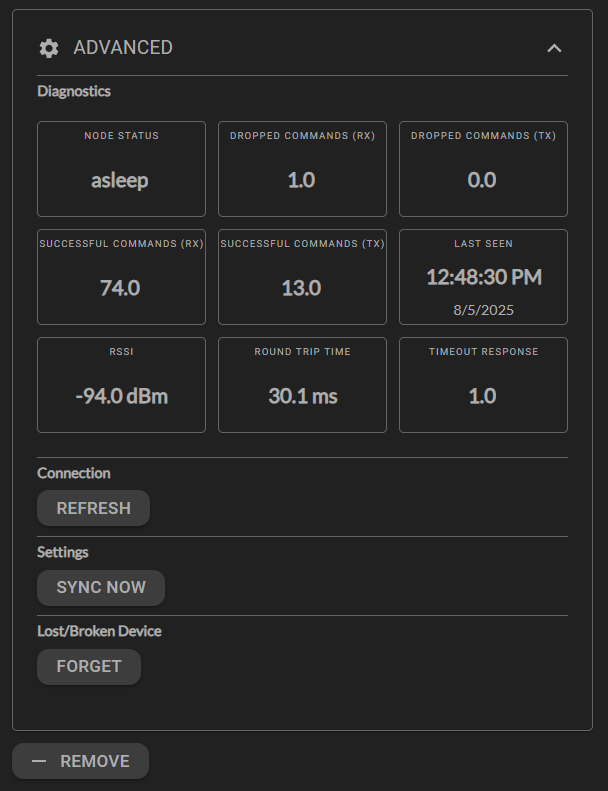
If the sensor is paired but acting unexpectedly (for example, showing No Data or using the wrong temperature units), click on the sensor name in the device list, and expand the Advanced panel for that sensor.
-
Sync Now — retrieves the latest settings from the device, such as temperature units.
-
Refresh — re-establishes communication with the device.
-
Forget — permanently removes the device. Use only if the device is lost, damaged, or broken.
Before using Sync Now, Refresh, or Forget, battery-powered sensors must be woken up first. Press the sensor's button to wake it. On open/close and temperature/humidity sensors the button is inside the casing and must be pressed four times.
Advanced troubleshooting
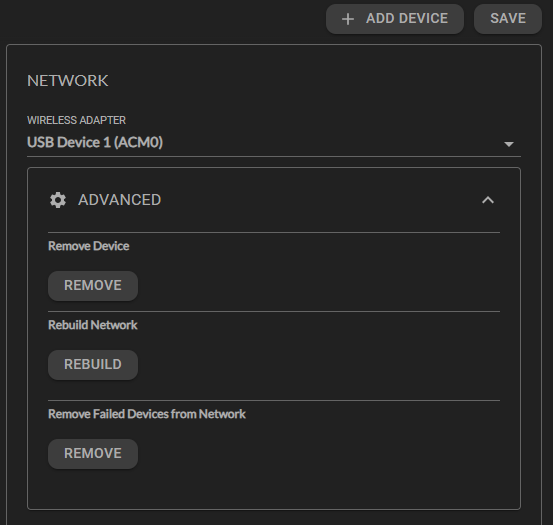
Advanced wireless troubleshooting options are found in BRNKL Device Manager, go to Wireless, click Network, and expand the Advanced section.
Rebuild network
Refreshes communication paths between the BRNKL system and all wireless sensors. Use when multiple sensors are offline, unresponsive, or out of sync after adding or moving several devices.
-
The rebuild process may take up to 24 hours to complete.
-
Battery-powered sensors update only when they wake up (automatically or manually).
-
Temporary communication issues may occur during the rebuild.
Use Rebuild Network only when experiencing issues with multiple sensors. It is not needed for isolated single-sensor problems.
Remove failed devices
Clears phantom sensors — devices the BRNKL system still recognises but that no longer respond. Use when a device was factory reset or physically removed without going through the normal Remove Device process.
-
This option only works if the device is truly not responding. If the device is still powered and responding, use the normal Remove Device process instead.
Remove Failed Devices is useful for cleaning up leftover entries after troubleshooting or replacing hardware.