
This page covers the device-specific steps for the Zooz ZSE70 Outdoor Motion Sensor. For general pairing flow, prerequisites, and activity settings, see Add wireless device. For full product details, see the Zooz manufacturer's page.
The ZSE70 is not fully supported by BRNKL. Core functionality works — motion detection, temperature, and illuminance all report correctly — but the device exposes additional diagnostic and internal endpoints that BRNKL does not hide or simplify. These extra endpoints can be ignored.
Not recommended for outdoor use on boats. Vessel motion — wave action, wakes, dock movement — frequently triggers false positives, making motion alerts unreliable. For interior motion sensing, use the indoor wireless motion sensor instead. For reliable outdoor presence detection, use the beam sensor instead.
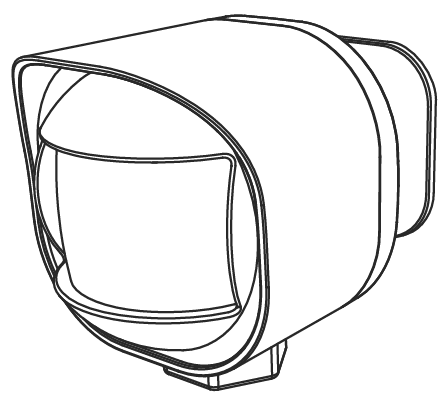
The outdoor motion sensor detects movement around the vessel exterior. It can be mounted near entry points, decks, or walkways and integrated with BRNKL alerts, event recording, and automations.
Pair motion sensor
-
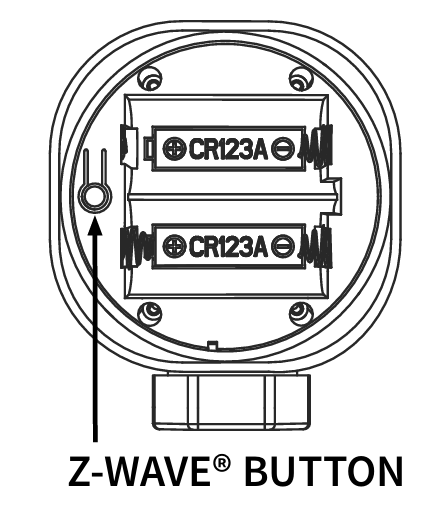
Open the device case and insert the batteries.
-
In BRNKL Device Manager, go to Settings > Wireless and click + Add Device.
-
Press the Z-Wave button 3 times quickly. The LED will flash to indicate inclusion mode.
-
When prompted, enter the 5-digit PIN (DSK code) from the device packaging or label, then enter a descriptive name.
Endpoints
Once paired, the ZSE70 exposes a large number of endpoints. The following are the useful ones to configure:
-
Motion detection — digital state, triggers when motion is detected. Default labels are Motion (high) and No Motion (low). Set Alert When to High to alert on motion.
-
Air temperature — analog reading in °C or °F.
-
Illuminance — analog reading in lux.
-
Replace battery soon / Replace battery now — digital states that alert when battery replacement is needed.
The remaining endpoints (Motion sensor status, Cover status, Tampering/product cover removed, Battery maintenance status, AC mains re-connected, Indicator value, Identify) are internal diagnostic states. They can be safely ignored — enable Monitor only if you have a specific need.
Remove motion sensor
-
Press the Z-Wave button 3 times quickly to put the sensor into exclusion mode.
-
In BRNKL Device Manager, go to Settings > Wireless, select the device, and click – Remove.
Factory reset
-
Ensure the sensor is powered.
-
Press and hold the Z-Wave button for at least 10 seconds. The LED will flash blue, then go solid to confirm reset.